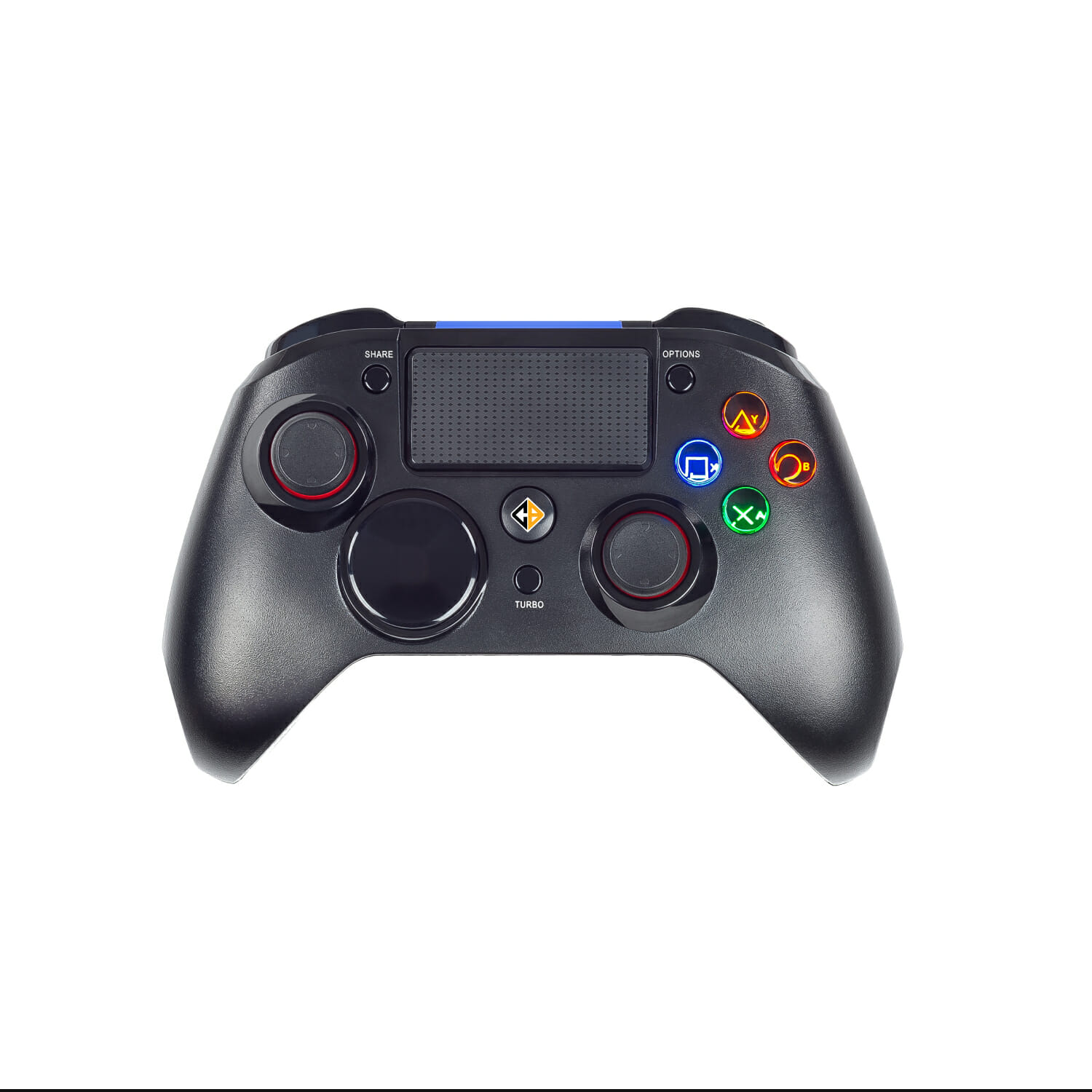
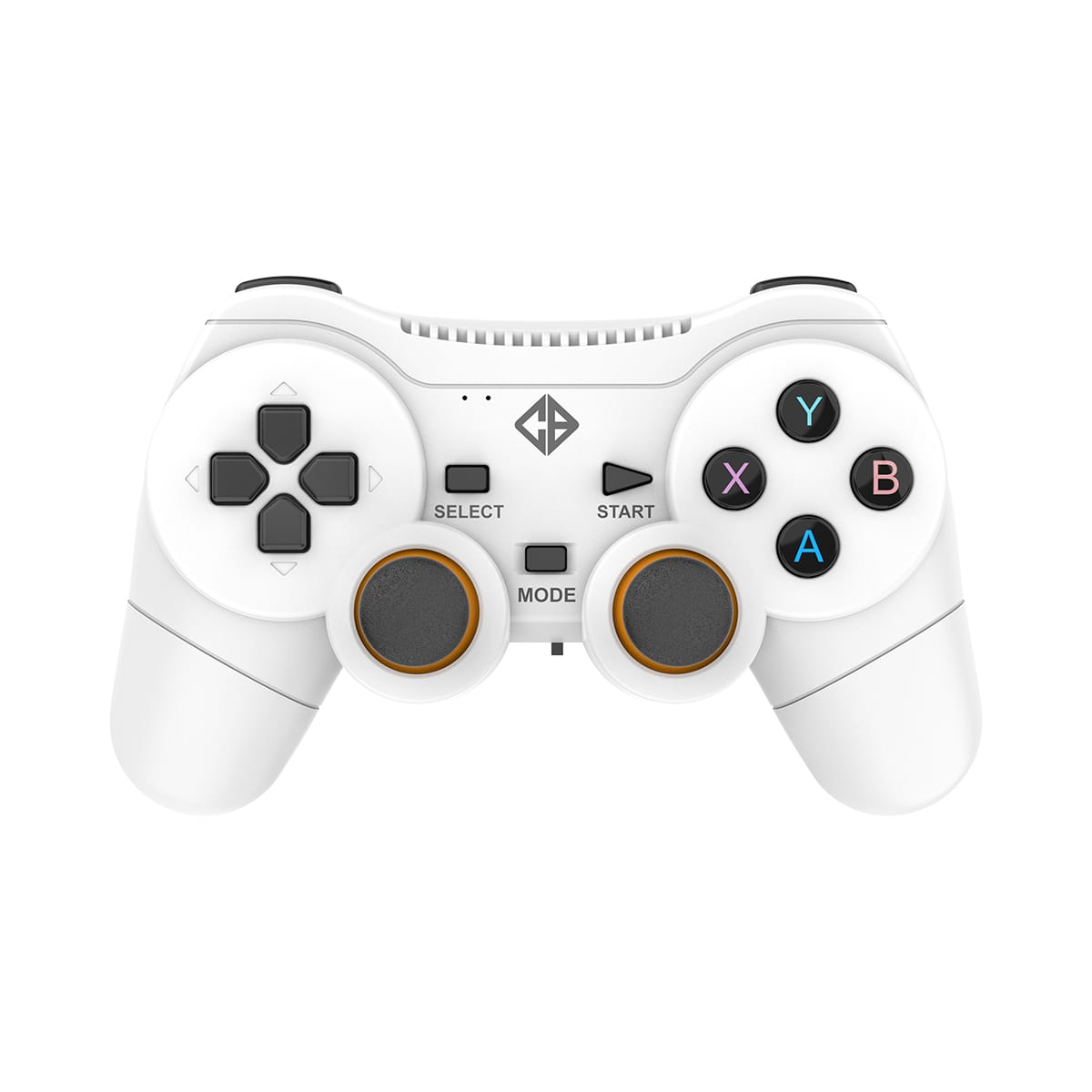
What devices is the Lumora controller compatible with?
▼
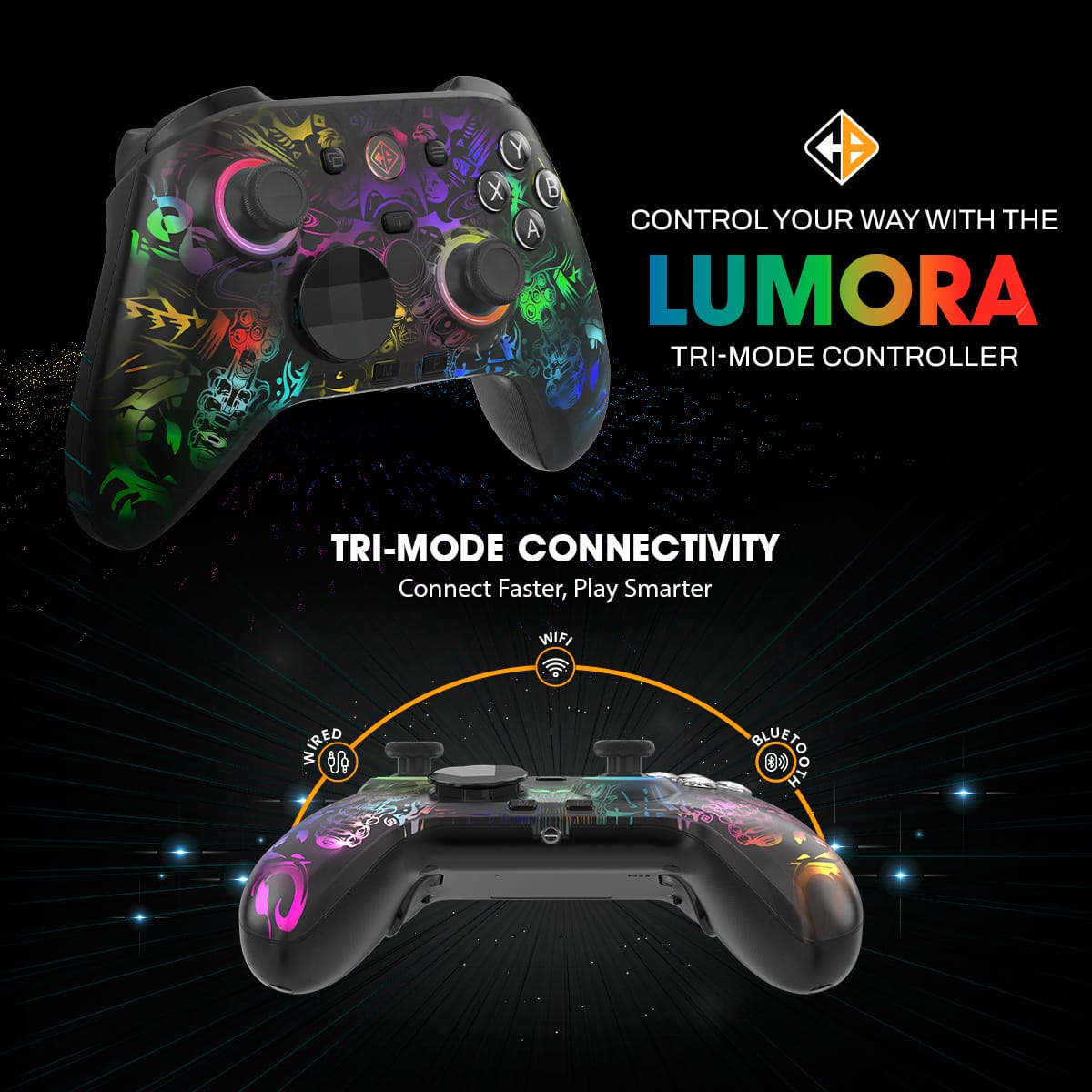
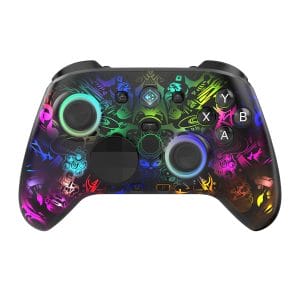
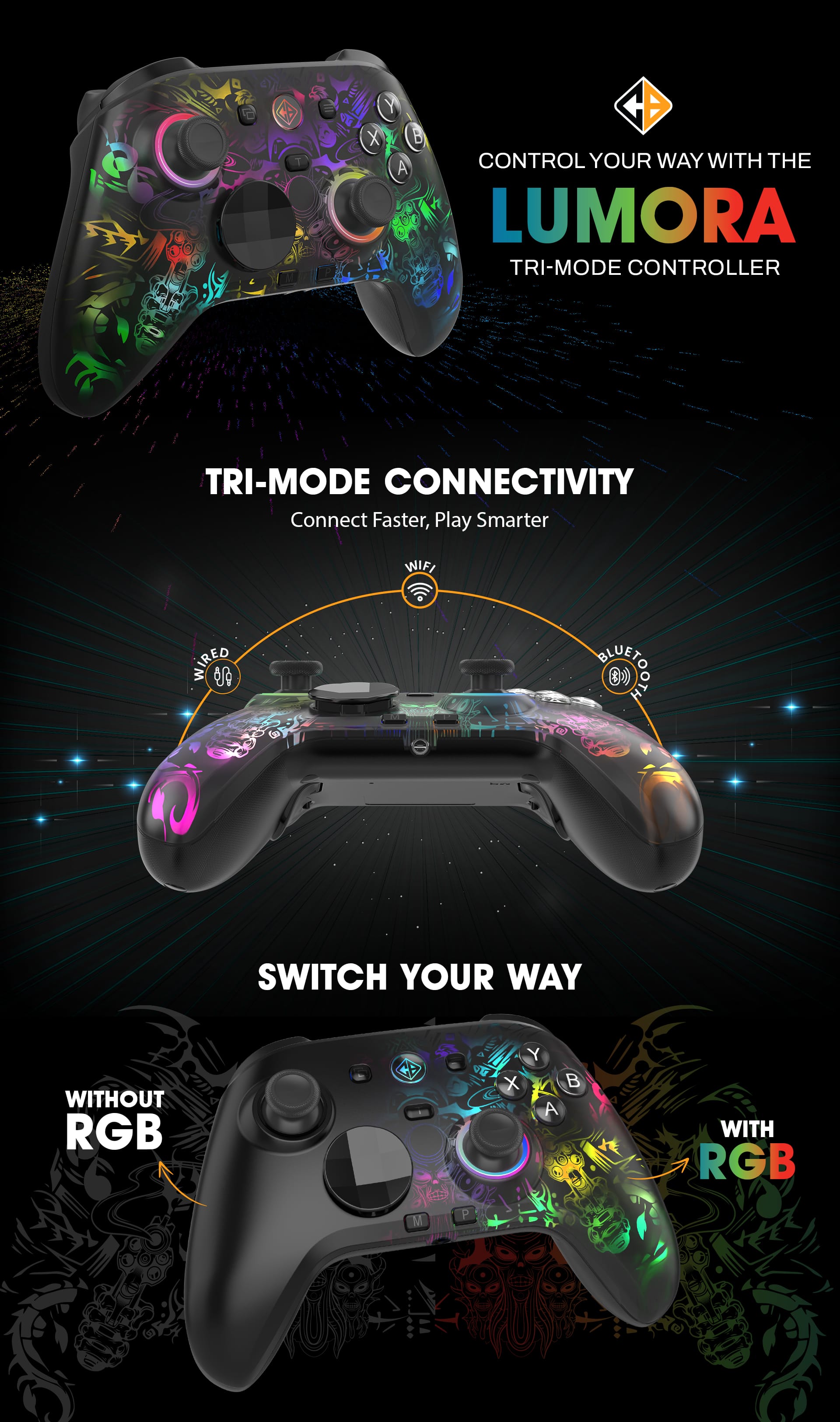
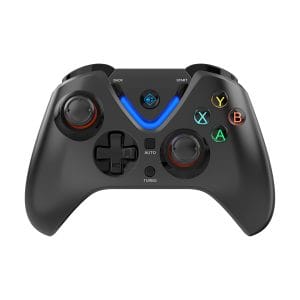
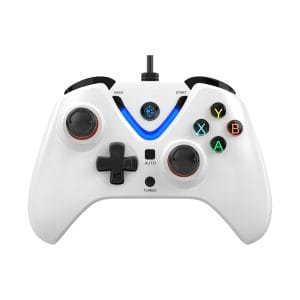
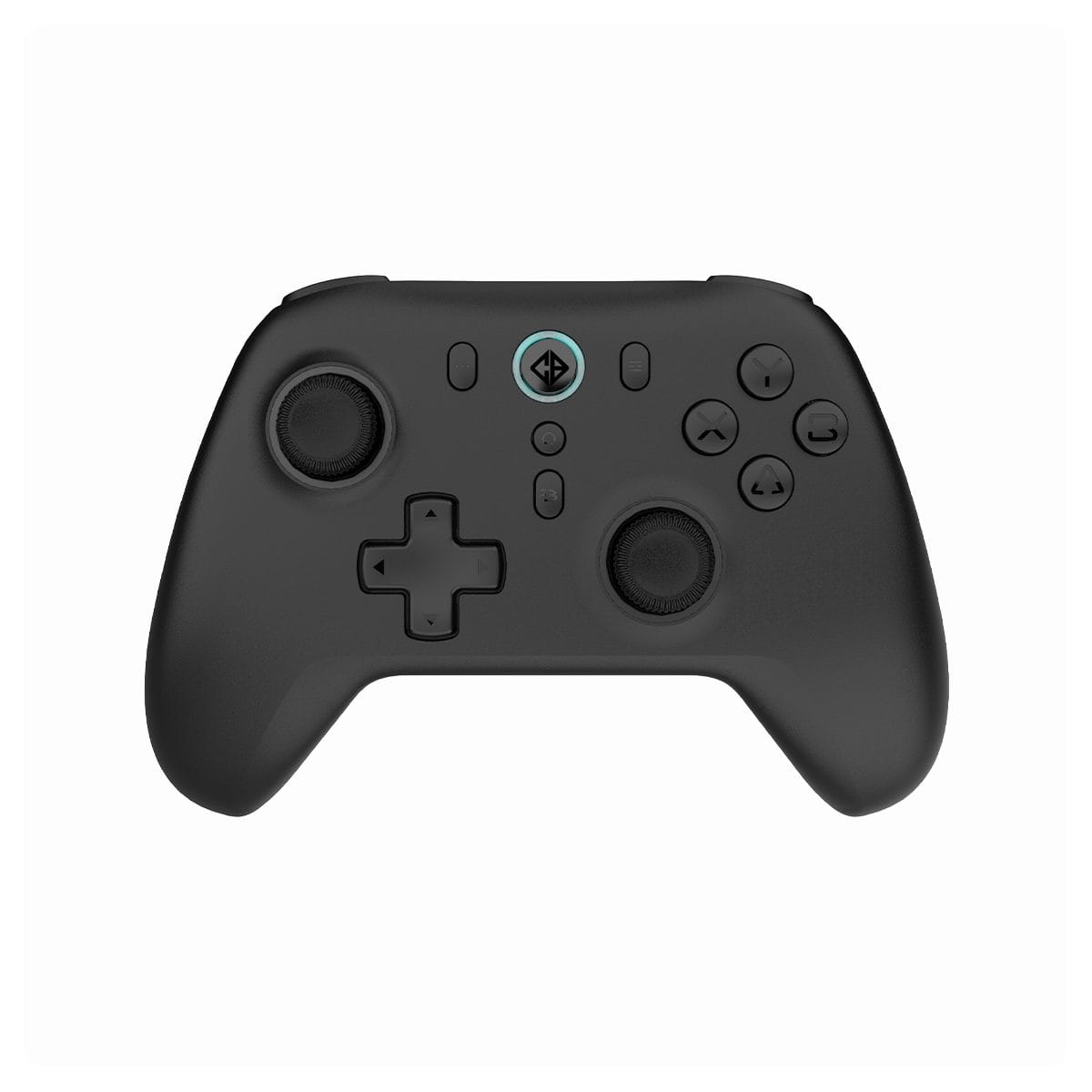
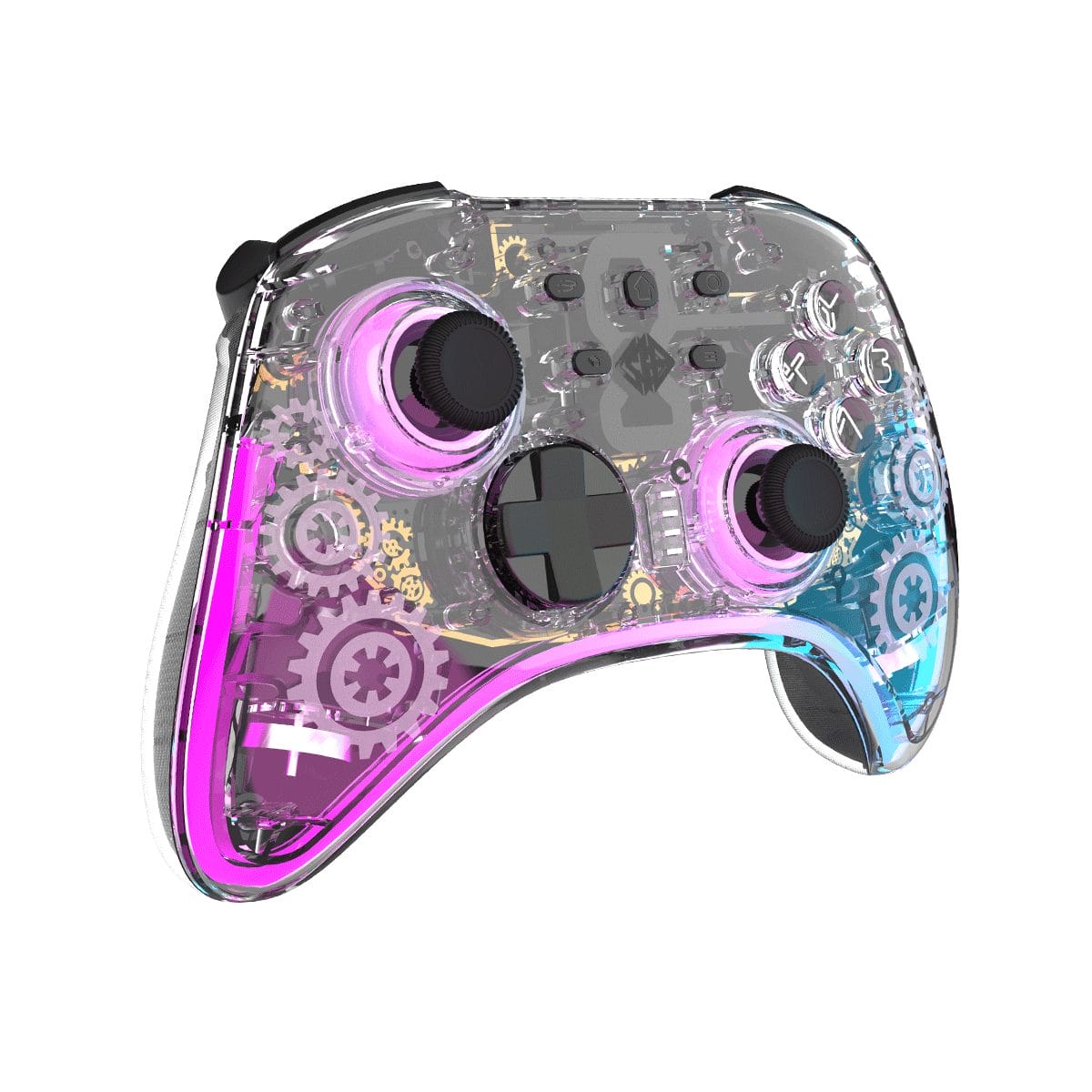
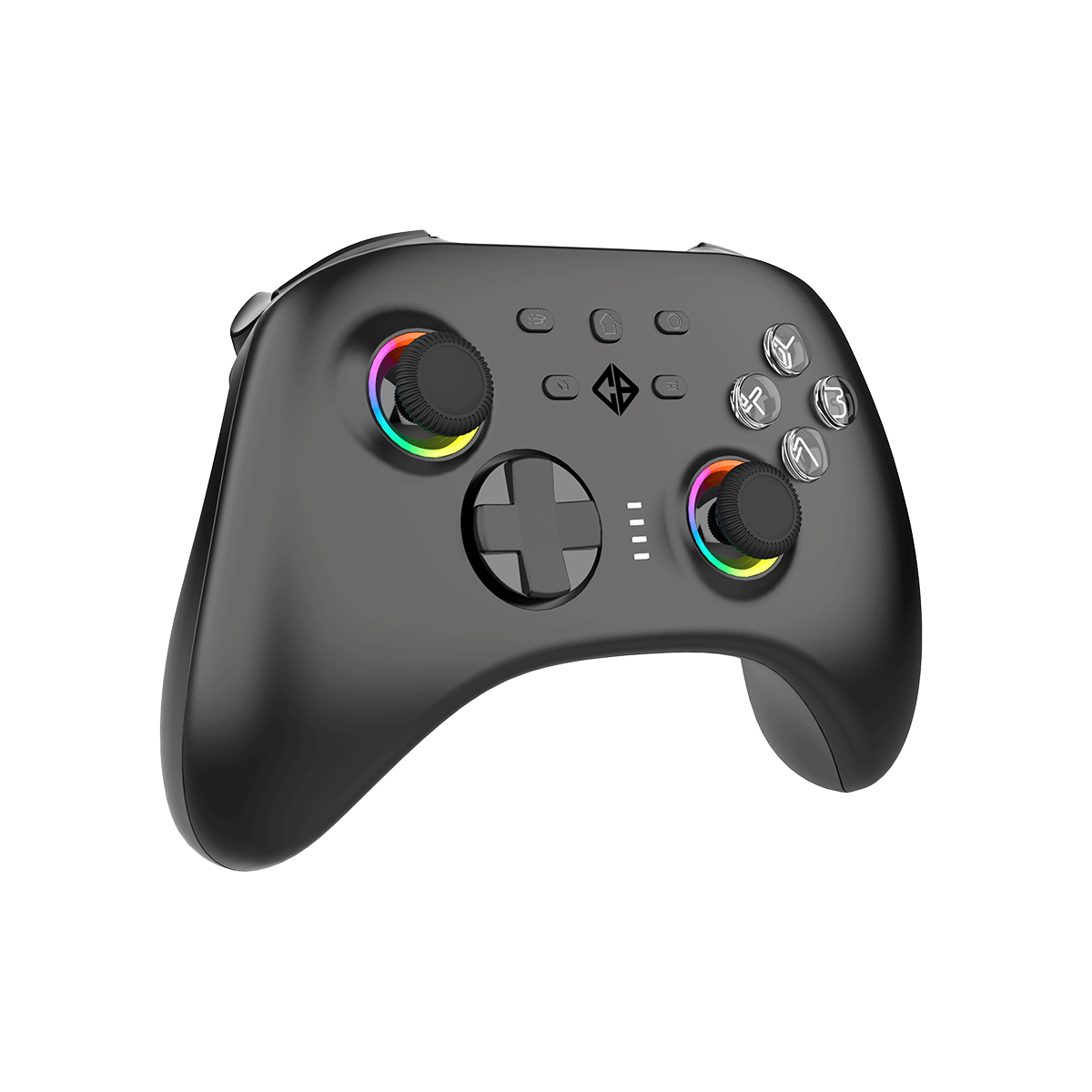
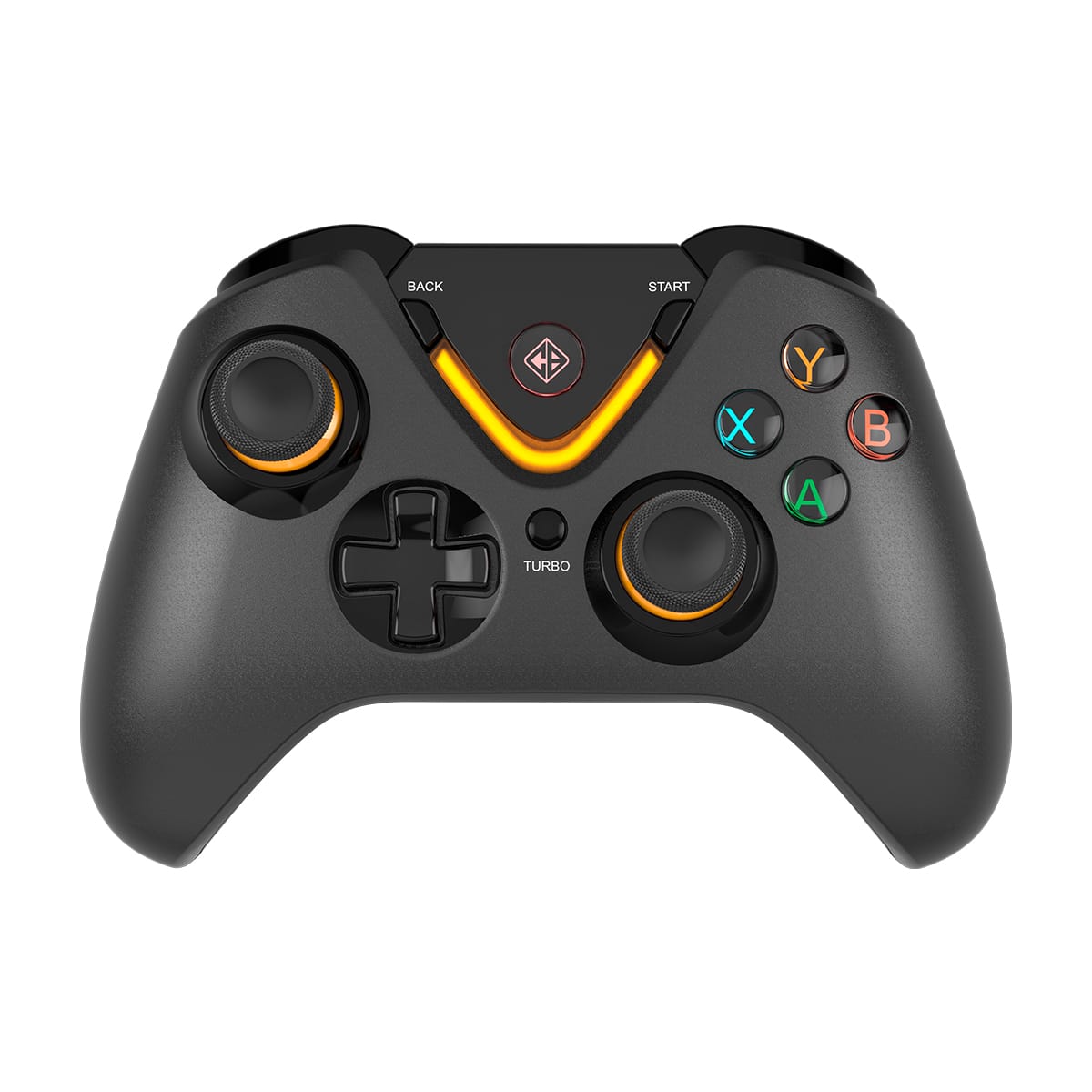
The Lumora is designed primarily for Windows PC (XInput/DInput). It also has limited support for Android, iOS, Smart TVs, and Mac OS via Bluetooth. Note that it is NOT compatible with PlayStation, Xbox, or Nintendo Switch, and no warranty or support is provided for console usage.
Do I need to install drivers to use the Lumora on PC?
▼
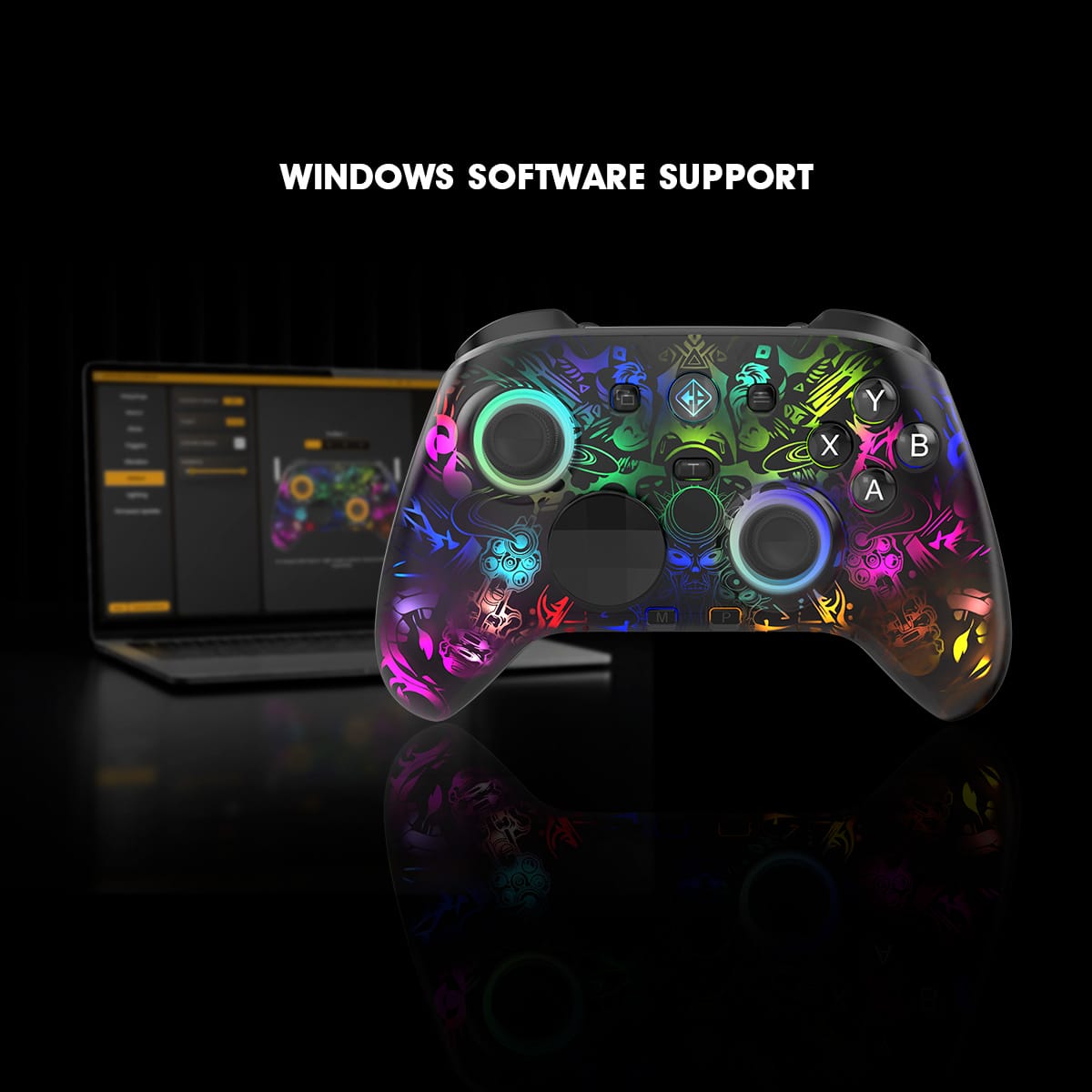
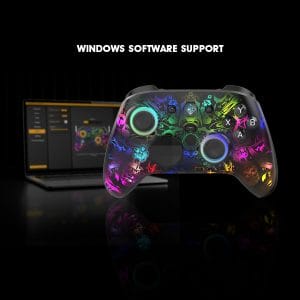
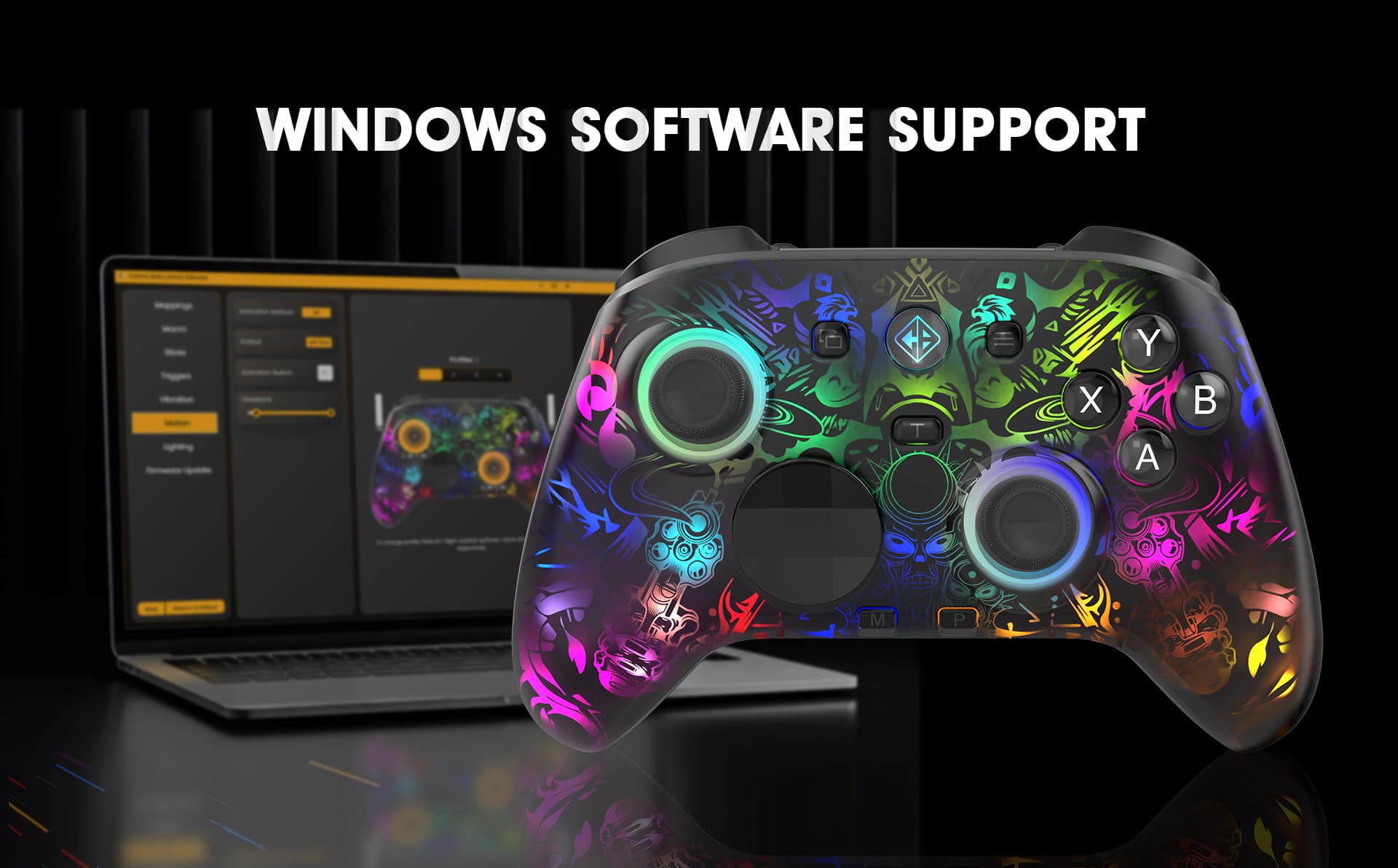
No. When connected via USB-C (wired mode), Windows detects it automatically with no drivers required. For the Cosmic Byte software (used for macros, lighting, and sensitivity customization), download it from our website.
My controller won't power on. What should I do?
▼
Try the following steps: Hold the HOME button for at least 1 second to power on. If nothing happens, charge it via USB-C for 10–15 minutes and try again. Ensure the cable is firmly connected. Try a different USB port or cable. If still unresponsive, insert a pin into the RESET hole on the back for 2 seconds and retry.
How do I connect the controller via 2.4GHz wireless?
▼
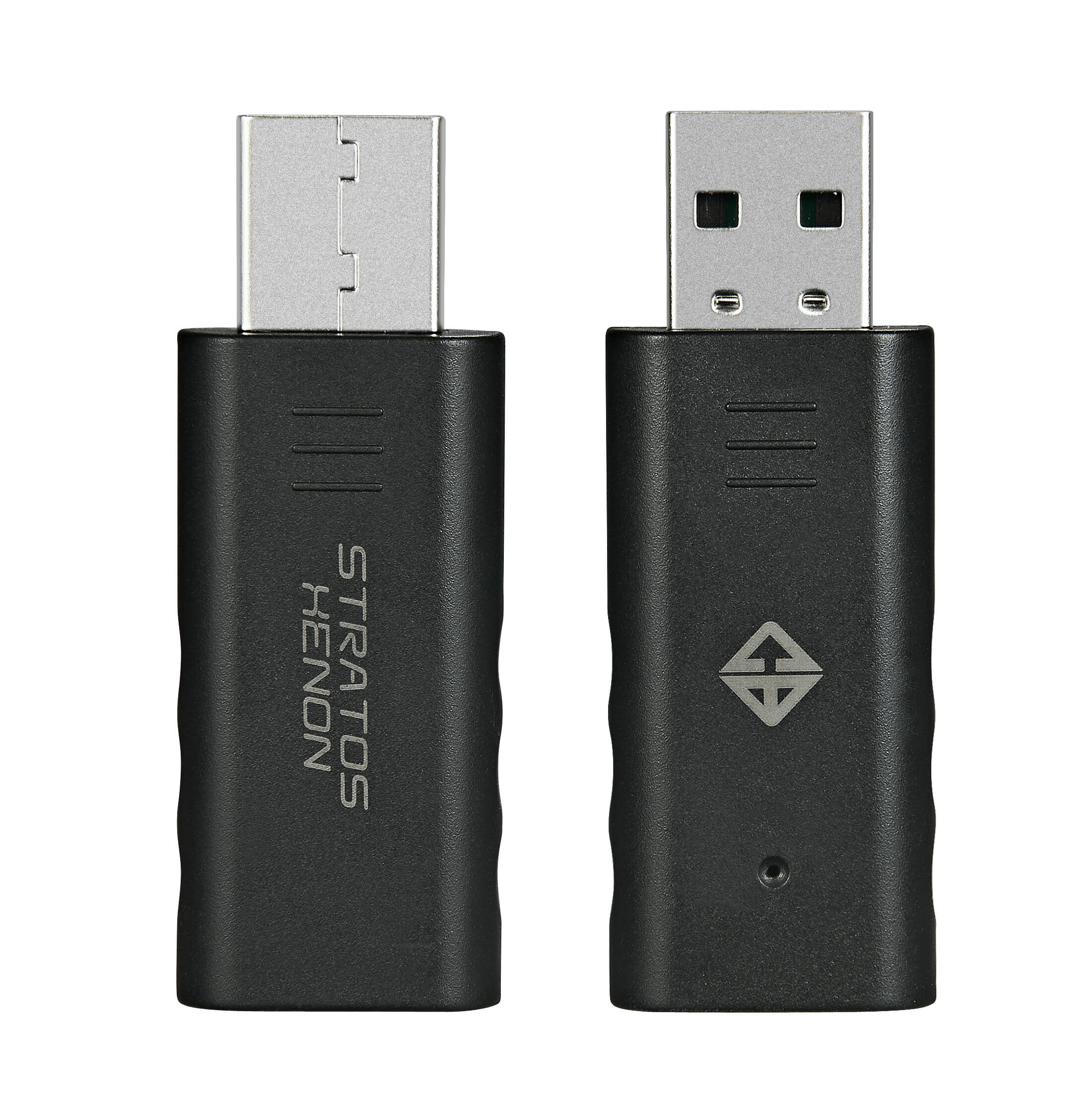
Plug the USB dongle into a PC USB port and press the dongle's Force Key for 1 second until its LED flashes. Then power on the controller by pressing HOME, and hold the PAIRING (P) button for 3 seconds until the LED flashes purple. The controller will vibrate once and auto-connect to the dongle in few seconds.
The 2.4GHz wireless is not connecting. What can I do?
▼
Ensure the USB dongle is plugged directly into the PC (avoid USB hubs or extenders). Press the dongle Force Key for 1 second, then re-enter pairing mode on the controller. Keep the controller within 1 meter during pairing. Move away from Wi-Fi routers or USB 3.0 devices that may cause interference. Try a USB 2.0 port. If still failing, unplug the dongle, wait 5 seconds, plug it back in, and reset the controller using the rear RESET hole.
How do I connect via Bluetooth?
▼
Power on the controller. For Android, hold PAIRING (P) + A for 3 seconds until the LED flashes green. For iOS, hold PAIRING (P) + B for 3 seconds until the LED flashes blue. Then open your device's Bluetooth settings and select "Cosmic Byte Lumora" from the list.
The controller is not appearing in my Bluetooth device list. How do I fix this?
▼
Make sure you're in the correct pairing mode for your device (Android or iOS). Delete "Cosmic Byte Lumora" from previously paired devices if it appears as already connected. Toggle Bluetooth OFF and ON on your device, restart it to clear Bluetooth cache, and stay within 8 meters without major obstacles. If still not visible, reset the controller via the rear RESET hole and retry pairing.
The controller keeps disconnecting randomly. What's causing it?
▼
This is usually due to signal interference, low battery, or being out of range. Fully charge the controller, and stay within 7–10 meters for 2.4GHz or 5–8 meters for Bluetooth. Move the USB dongle to a front USB port if it's on the back of a PC tower. Avoid thick walls or metal surfaces near the dongle. Also check if the controller is entering sleep mode after 5 minutes of inactivity — press HOME to wake it.
How do I wake the controller from sleep mode?
▼
Press the HOME button. The controller enters standby automatically after 5 minutes of inactivity and will reconnect to the last paired device. You can change the standy time using the PC software for the controller.
Some buttons are not working or responding incorrectly. What should I do?
▼
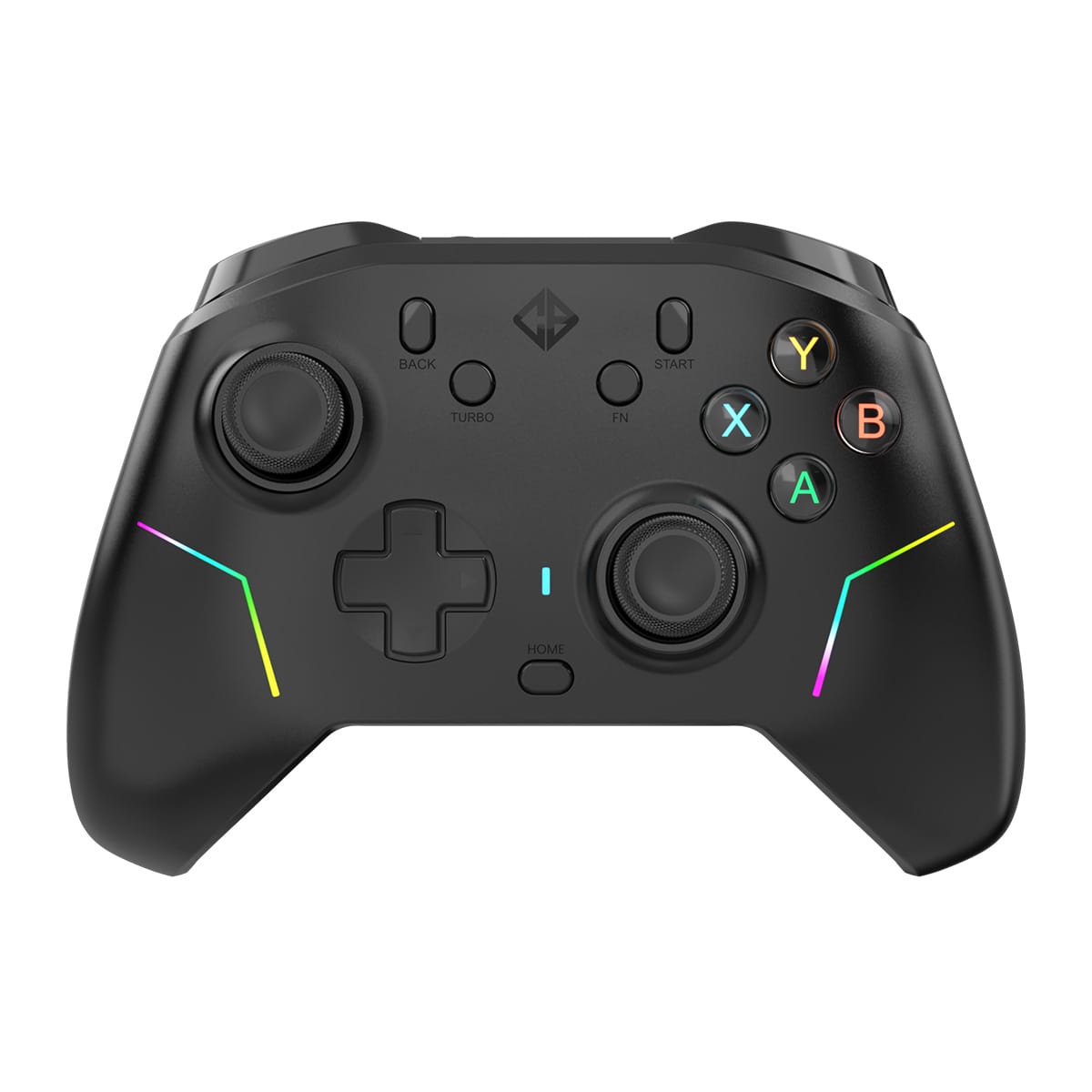
Check that the correct input mode is selected — hold Back + Start for 3 seconds to toggle between X-Input (Yellow LED) and D-Input (Red LED). X-Input is recommended for most PC games. Restart the game, as some games only detect controllers at launch. Test in Windows Game Controller Settings by pressing Win + R and typing joy.cpl. If issues persist, reinstall the controller in Windows Device Manager (Right-click → Uninstall Device → Restart PC). Also disable any active Turbo or Macro settings that may be conflicting.
My joystick is drifting or moving inaccurately. How do I calibrate it?
▼
Turn off the controller, then hold Back + X + Home for 1 second. Rotate both joysticks clockwise 3 times and press both triggers 3 times, then press Start to complete calibration. Also check your Joystick Range Mode (toggle via L3/R3 + Macro) and ensure no dust is trapped under the joystick caps.
My triggers feel too sensitive or are not responding properly. What do I do?
▼
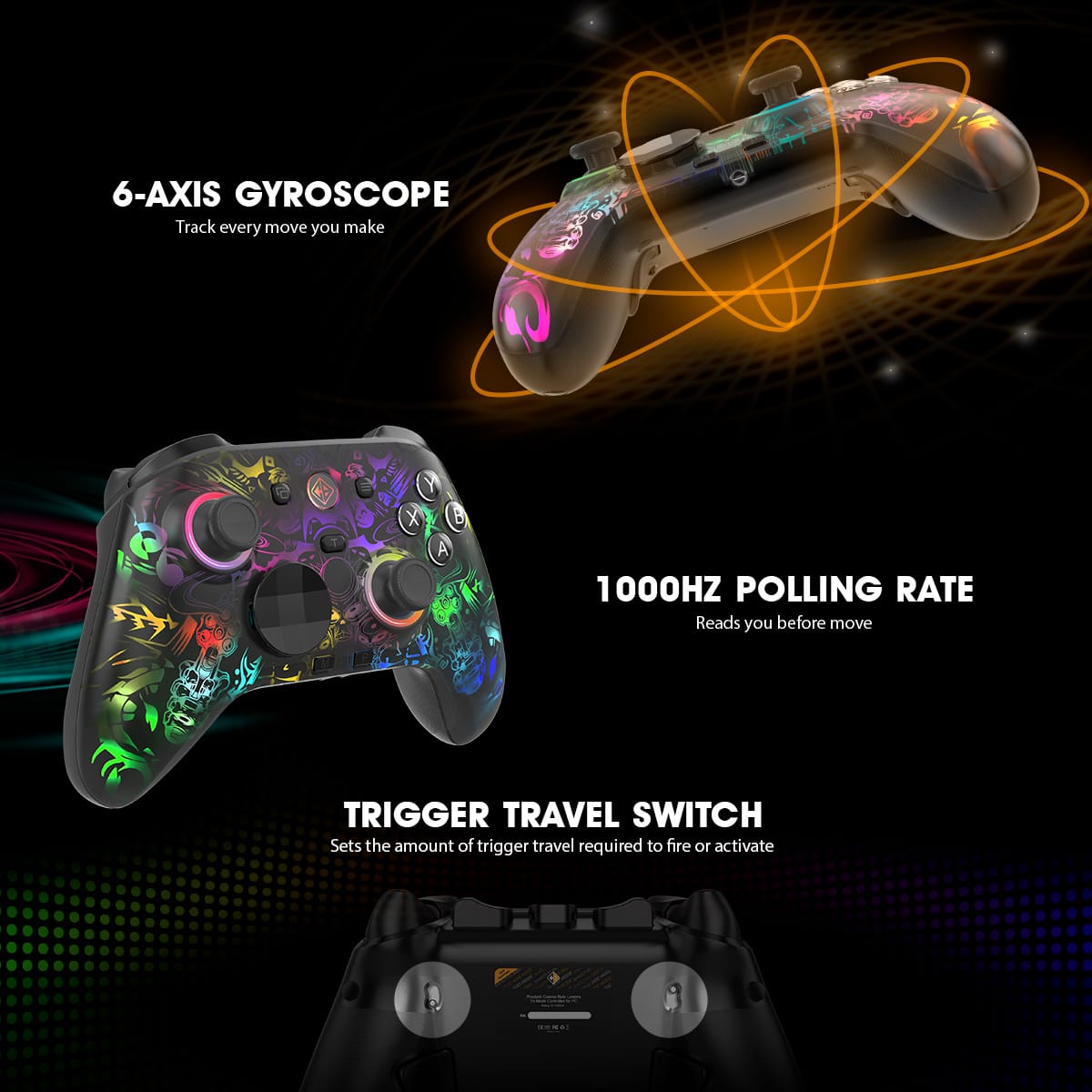
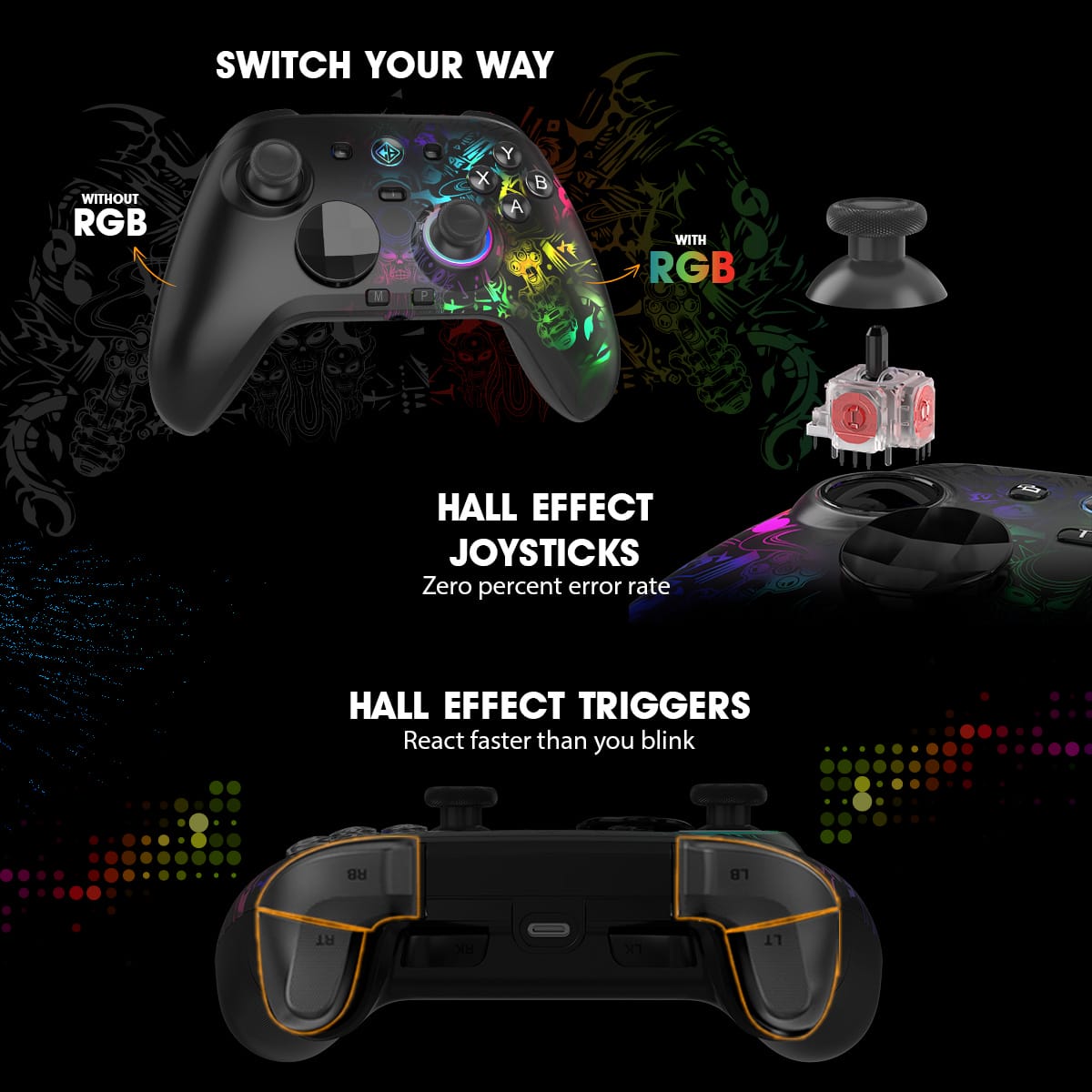
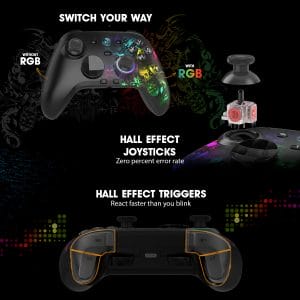
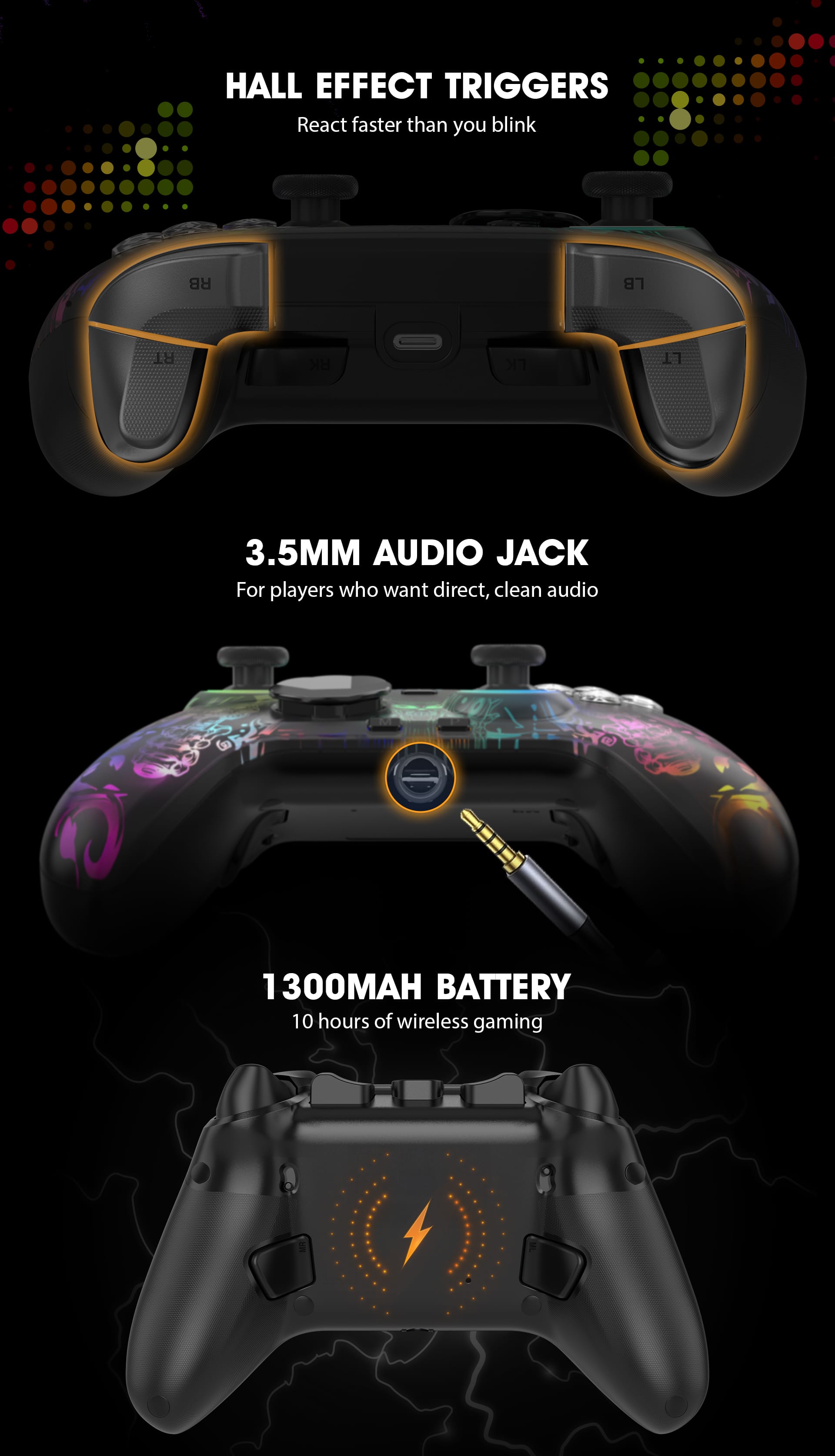
The Lumora has Hall Effect triggers with Analog and Digital modes. In Analog mode, triggers provide gradual linear input. In Digital mode, they act as instant on/off buttons. Press the PAIRING key to cycle through sensitivity levels: 30% → 60% → 100%. The controller vibrates once with each change. Restart the game after switching modes.
The vibration/rumble is not working. How do I fix it?
▼
First, check that vibration is enabled in the game's settings. To increase vibration intensity on the controller, press R3 + Left Stick Up and hold for 3 seconds. Ensure you are using X-Input mode on PC (vibration is supported in X-Input). Try reconnecting or switching connection modes.
The controller is not being detected in Steam or other game launchers.
▼
Verify X-Input mode is active (Yellow LED). Restart Steam/Epic Games/EA App. In Steam, go to Library → right-click the game → Properties → Controller → select "Disable Steam Input." Update Windows and check for conflicting drivers such as DS4Windows or virtual controller tools. Ensure no other controllers are connected simultaneously.
The RGB lighting is stuck or not changing. How do I fix it?
▼
Hold Turbo + R3 for 3 seconds to toggle RGB ON/OFF. Use Turbo + R3 to cycle lighting effects and Turbo + L3 to change LED colours. If still stuck, power the controller off and back on to reset lighting to default. Avoid pressing multiple lighting buttons too quickly.
You can use the controller software to customize the lighting.
My headset plugged into the 3.5mm jack is not producing any sound.
▼
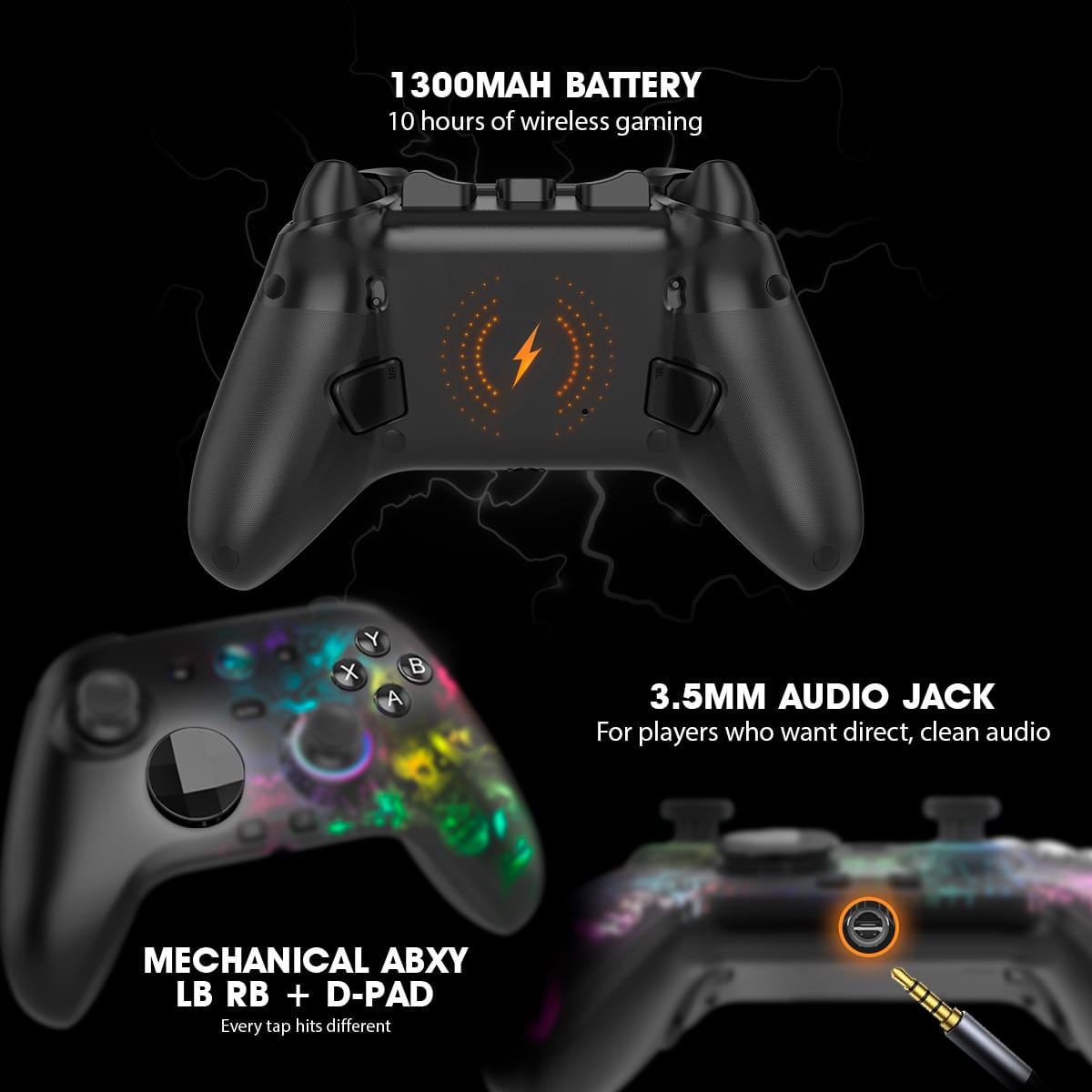
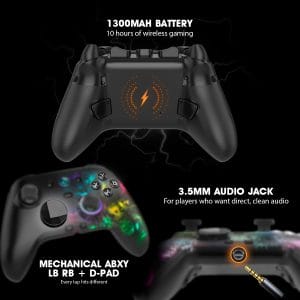
Audio via the 3.5mm jack only works in 2.4GHz or Wired mode — it is not available in Bluetooth mode. Ensure the headset plug is fully inserted and test it on another device. On PC, right-click the sound icon → Sound Settings → select the gamepad headset as the output device. Also check in-game audio settings for volume issues.
How do I check the battery level?
▼
Press Macro + RB. The LED colour indicates the battery level: Red = 1–25%, Yellow = 26–50%, Blue = 51–75%, Green = 76–100%.
The controller is not charging or charging slowly. What should I do?
▼
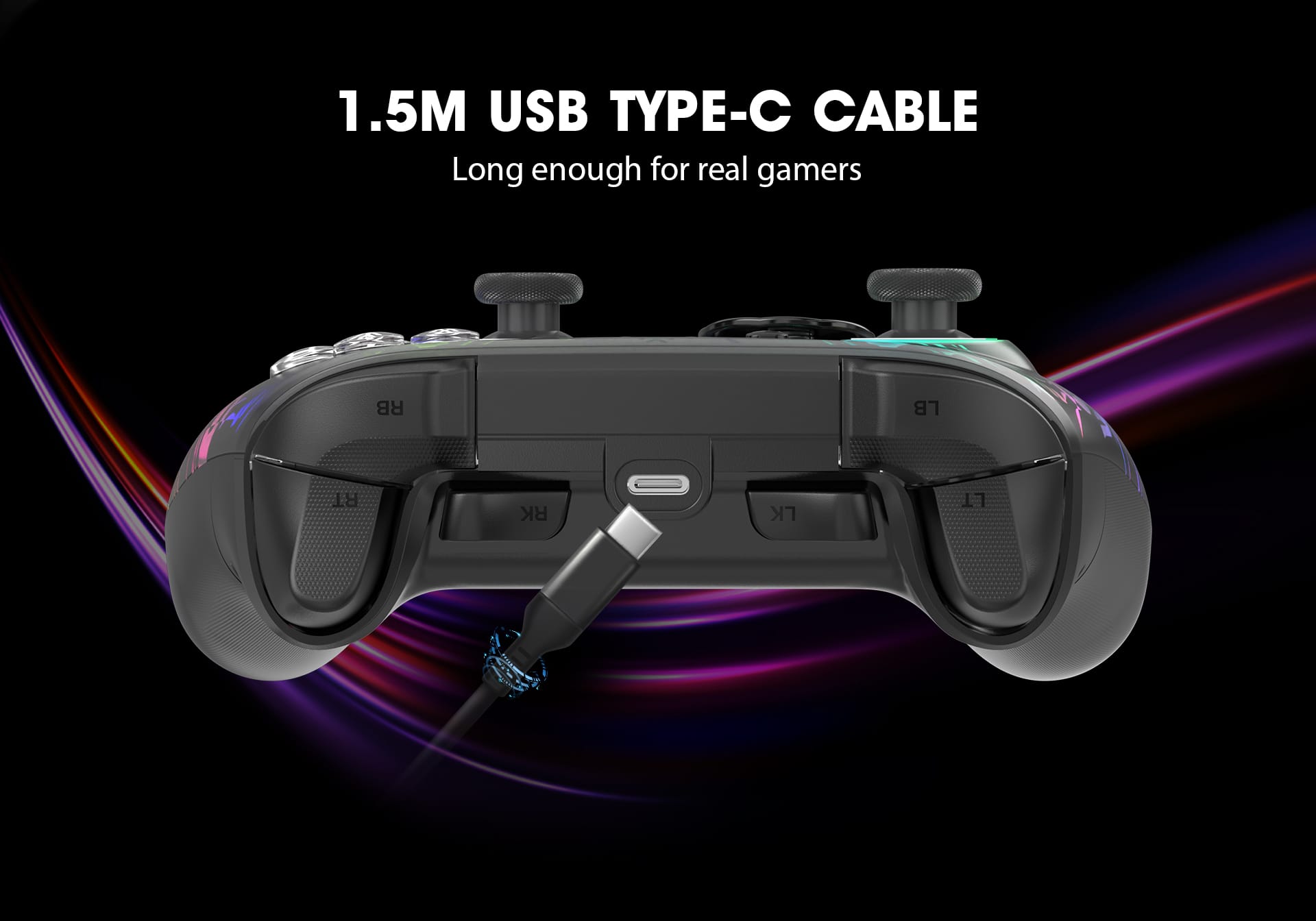
Ensure the USB-C cable supports both data and power (some cables are charge-only). Check for the slow-breathing LED that confirms charging is active. Try a different Type-C cable and wiggle the connector to confirm a firm connection. Use a PC USB port or a 5V/1A charger. Avoid fast-charging mobile adapters above 10W.
Can I play while the controller is charging?
▼
Yes. Charging via USB-C supports simultaneous gameplay.
The Cosmic Byte software is not detecting my controller.
▼
The software only supports Wired or 2.4GHz mode — it does NOT work over Bluetooth. Try a different USB port (avoid front panel ports if unstable). Close all background controller apps such as X360CE, DS4Windows, or Steam Big Picture. Restart your PC, reinstall the Cosmic Byte software from www.thecosmicbyte.com.
Nothing is working. How do I factory reset the controller?
▼
Insert a pin into the RESET hole on the back of the controller and hold for 2 seconds. Then reconnect using your preferred mode (Bluetooth, 2.4GHz, or Wired). Note: This will NOT delete your saved macros but may clear pairing data.
What is covered under the Lumora's warranty?
▼
The Lumora carries a 1-year warranty against manufacturing defects only. Physical damage, water damage, and tampered products are not covered. Android usage is also not covered under warranty. For warranty claims, contact Cosmic Byte at cc@thecosmicbyte.com or call +91 7351615161 (Mon–Sat, 10am–6pm).
Does the Lumora controller work with Android/iOS games?
▼
The Lumora controller can connect to Android/iOS devices via 2.4GHz Wireless or Bluetooth (hold PAIRING (P) + A for 3 seconds until the LED flashes green, then select "Cosmic Byte Lumora" in your phone's Bluetooth settings). However, Android/iOS support is limited — not all Android/iOS games support external controllers, and compatibility will vary by game and device. Android/iOS usage is not covered under warranty, so it is recommended to test compatibility before relying on it for regular gameplay.
Does the Lumora support vibration/rumble on Android/iOS?
▼
Vibration support on Android/iOS depends on the individual game — not all Android games support controller rumble. To ensure the controller's vibration is active, press R3 + Left Stick Up (hold for 3 seconds) to set it to maximum intensity before testing. If a game supports rumble but vibration still doesn't work, try switching connection modes or reconnecting the controller. Since Android/iOS support is limited and not covered under warranty, vibration functionality on Android/iOS cannot be guaranteed across all titles.
Do I need to re-pair the controller every time I turn it on?
▼
No. Once paired, the controller automatically reconnects to the last used device when powered on. Simply press the HOME button to turn it on and it will reconnect. However, if you switch between Bluetooth and 2.4GHz modes, you will need to re-pair with the dongle.
Can I connect the Lumora to multiple devices and switch between them?
▼
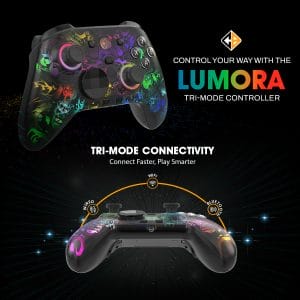
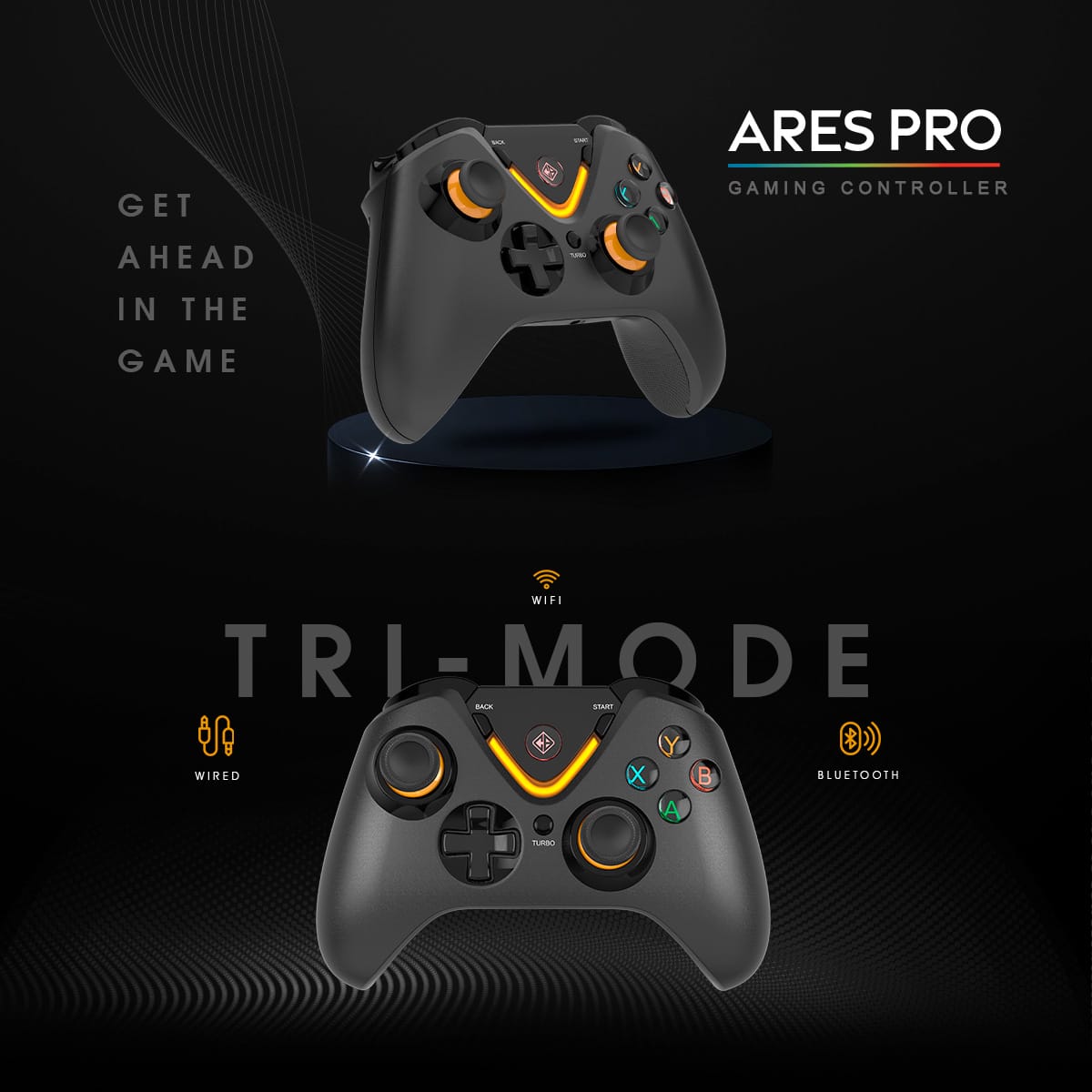
The controller supports three connection modes (2.4GHz, Bluetooth, Wired) but can only be actively connected to one device at a time. To switch devices, you will need to clear the existing pairing and re-pair with the new device by holding PAIRING (P) for 3 seconds until the LED blinks rapidly.
The USB dongle LED is not lighting up at all. What's wrong?
▼
Try plugging the dongle into a different USB port, preferably a USB 2.0 port directly on the motherboard rather than a hub or extender. If the LED still doesn't light up, press the small Force Key on the dongle for 1 second. If the dongle remains completely unresponsive on multiple ports, it may be faulty — contact Cosmic Byte support.
Can I use the controller while the USB dongle is plugged in and also charge it simultaneously?
▼
Yes. You can play wirelessly via 2.4GHz while charging the controller through the USB-C port at the same time. This also works in wired mode where the USB-C cable handles both power and data.
The Turbo function is activated on a button by mistake. How do I turn it off?
▼
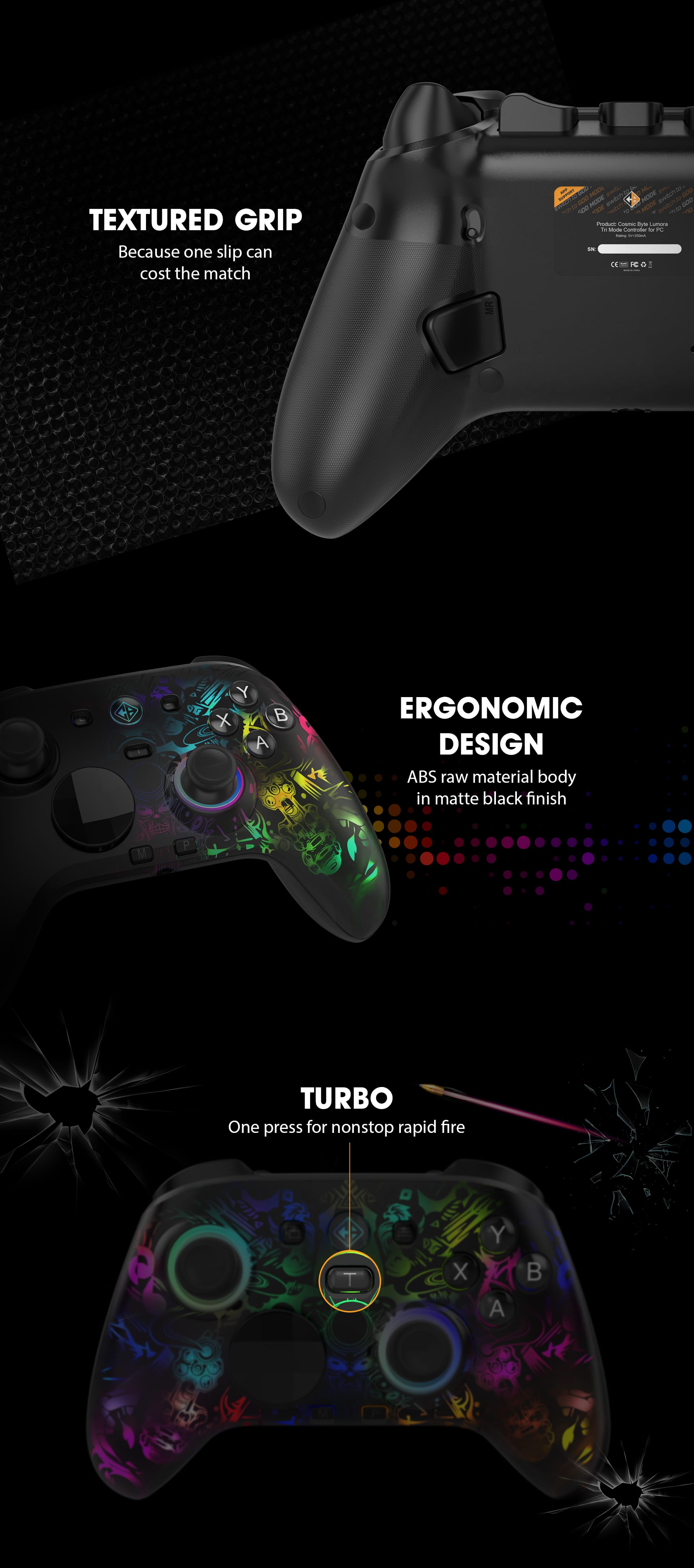
Press Turbo + the same button again to disable Turbo on that specific button. To clear Turbo from all buttons at once, hold the TURBO button + START together for 2 seconds. The controller will vibrate once to confirm all Turbo settings have been cleared.
How do I record a Macro and why isn't mine saving?
▼
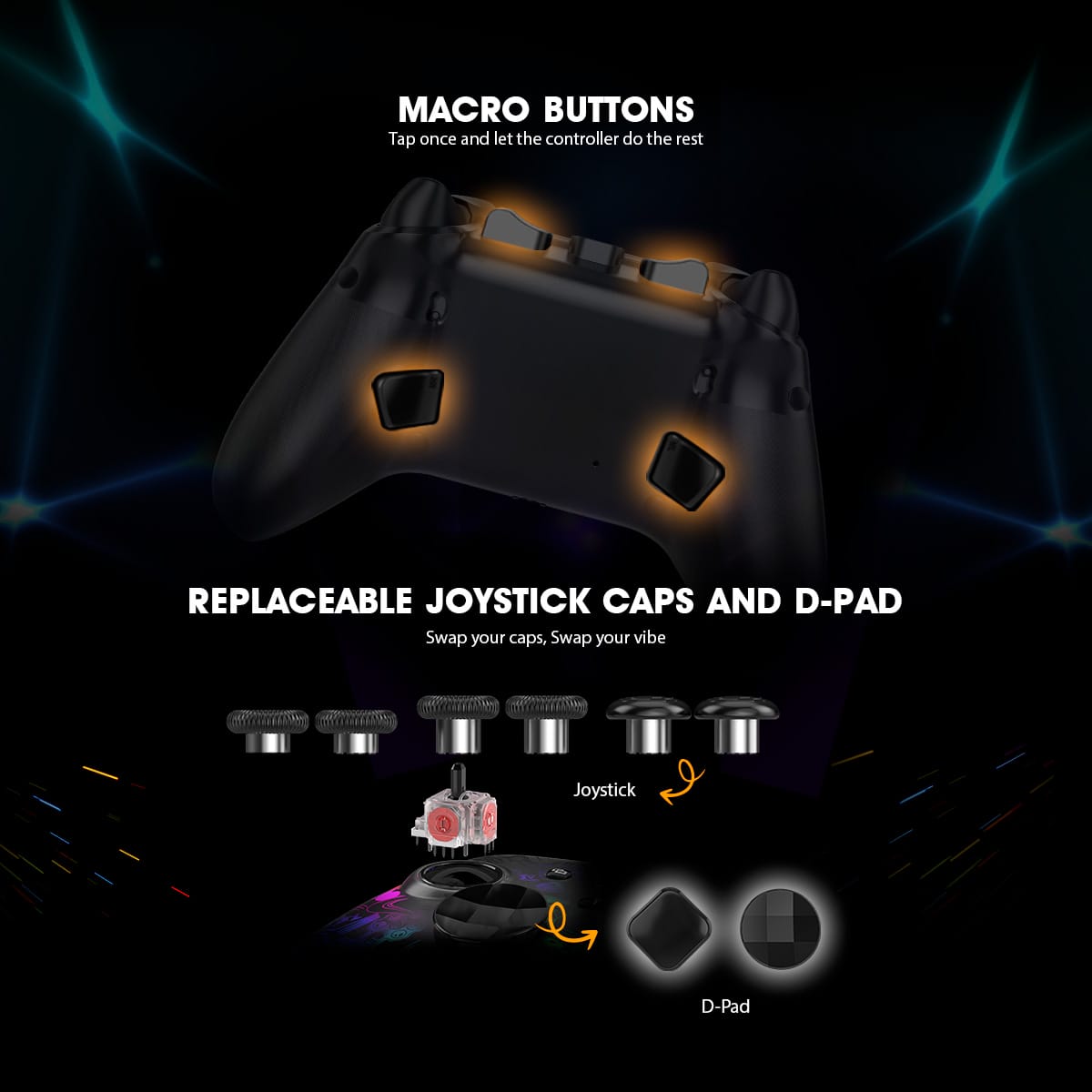
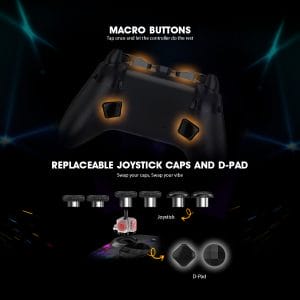
To record a macro, hold the Macro (M) key together with ML / MR / LK / RK for 2 seconds until the LED flashes. Enter your desired button sequence, then press the same M button again to save — the controller will vibrate once to confirm. If the macro is not saving, ensure you are pressing the M button a second time to complete the save, and not releasing it too early.
My D-pad is not registering diagonal inputs accurately. What can I do?
▼
Try switching the Joystick Range Mode by pressing L3/R3 + Macro to cycle between Full Circle (default), Small Circle (precision), and Square Mode (tight angles). Square Mode is particularly useful for games that require precise directional inputs like fighting games. Also ensure the D-pad cap is properly seated, as it is replaceable and may have shifted.
The controller works on one game but not another on the same PC. Why?
▼
Some games only support X-Input while others support D-Input. Hold Back + Start for 3 seconds to switch modes — Yellow LED means X-Input and Red LED means D-Input. Also, some games only detect controllers at launch, so plug in or connect the controller before starting the game. For Steam games, try disabling Steam Input via the game's controller properties.
Can I adjust joystick sensitivity or dead zones?
▼
Yes. Via the Cosmic Byte Windows software (available at www.thecosmicbyte.com), you can configure joystick sensitivity, dead zones, and range. On the controller itself, you can toggle between three Joystick Range Modes (Full Circle, Small Circle, Square) using L3/R3 + Macro.
What is the difference between the trigger travel switch Long and Short positions?
▼
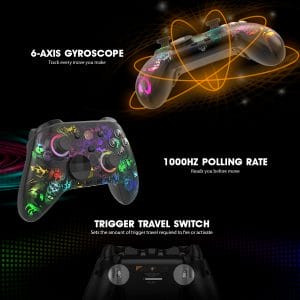
The Trigger Travel Switch on the back of the controller lets you physically adjust how far the triggers need to be pressed before they actuate. Short travel means the trigger registers input with a shorter press — ideal for competitive shooters where fast trigger response is critical. Long travel gives the full analog range, which is better for racing or games requiring gradual trigger input.
How do I use the Gyroscope feature?
▼
The 6-axis gyroscope is available when connected via Bluetooth in Gyro Mode. To activate it, hold Y + P for 3 seconds until the LED starts blinking, then pair it to your PC via Windows Settings → Bluetooth & Devices → Add Device → select "Pro Controller." Once the LED stabilises, the controller is ready in Gyro Mode.
You can also use Gyro in other modes by configuring it in the gamepad software
How long does the battery last and how long does it take to fully charge?
▼
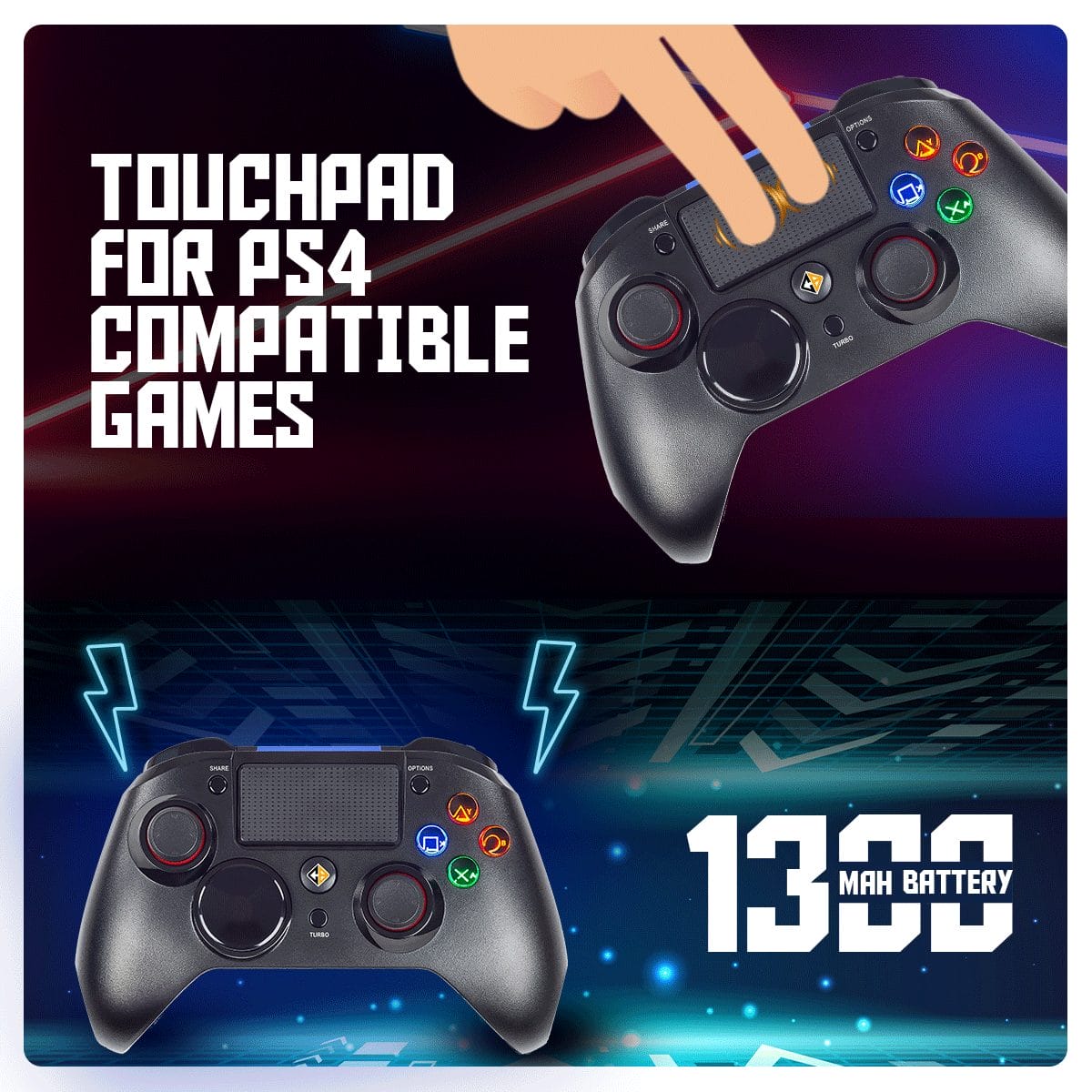
The built-in 1300mAh lithium battery provides up to 10 hours of gameplay on a single charge with the LED lighting turned off. Charging time will vary but using a 5V/1A charger via USB-C is recommended. The HOME LED breathes slowly while charging and turns off when fully charged.
Can I replace the joystick caps and D-pad?
▼
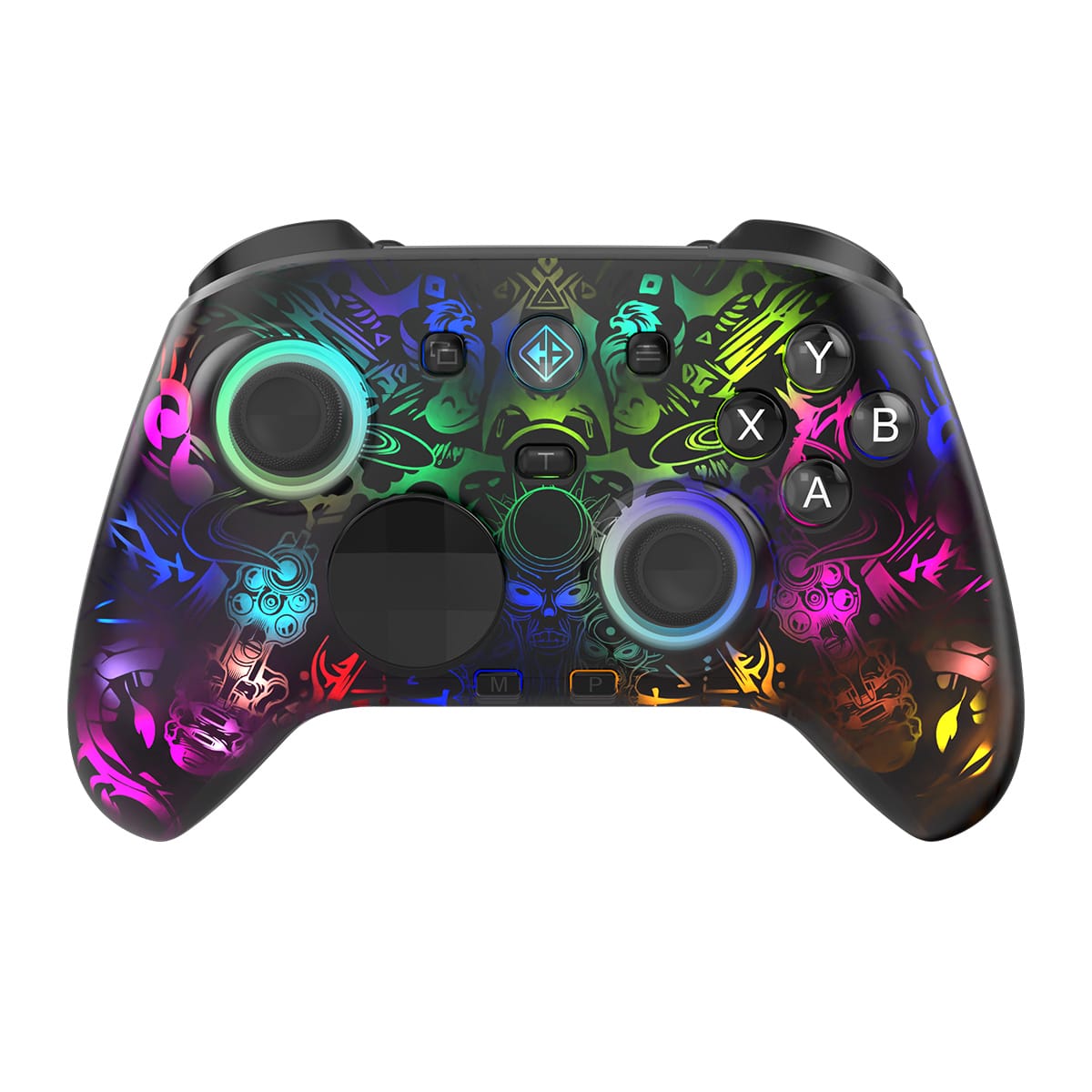
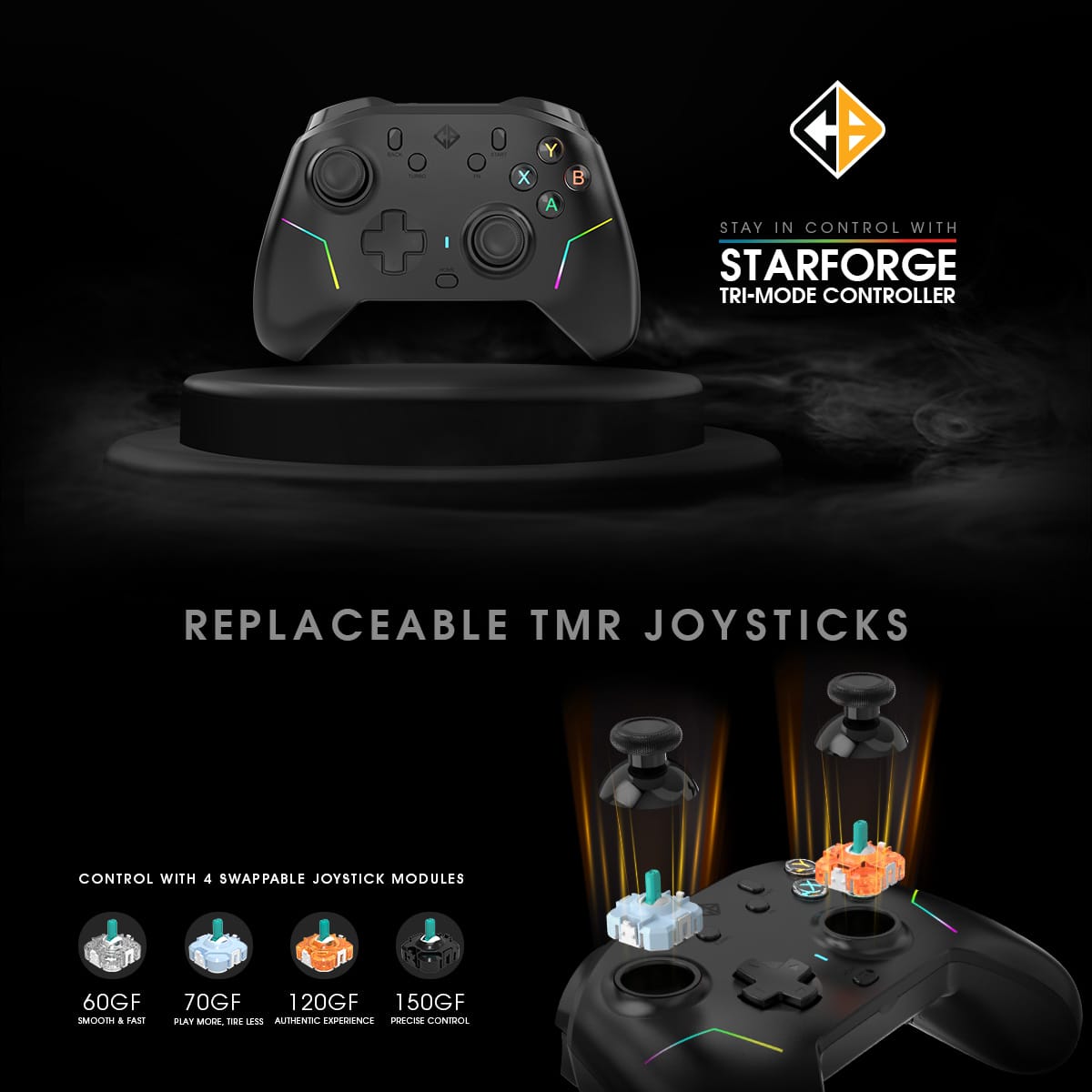
Yes. The Lumora features replaceable joystick caps and a replaceable D-pad, allowing you to swap them for customisation or in case of wear. Simply pull off the existing caps and press on the replacement ones. Use only compatible caps to avoid affecting joystick accuracy.
Does the Lumora have a headphone volume control on the controller itself?
▼
No, there is no dedicated volume control button on the controller. For volume adjustments, use your PC's Sound Settings (right-click the sound icon → Sound Settings) or adjust the in-game audio settings directly.
How do I update the firmware on my Lumora controller?
▼
Firmware updates are done through the Cosmic Byte Windows software. Connect the controller via USB-C (wired mode), open the software, and check for available firmware updates. Keeping the firmware up to date ensures the best performance and compatibility.
Download the latest software and uninstall any previous software to get the latest firmware updates.
What type of damage is NOT covered under warranty?
▼
Physical damage (drops, cracks), water damage, and any signs of tampering or disassembly are not covered. Android-related issues are also excluded from warranty coverage. Only manufacturing defects are covered under the 1-year limited warranty.
Does the Lumora controller work with NVIDIA GeForce Now?
▼
Yes, the Lumora controller can work with NVIDIA GeForce Now on PC. Connect it via Wired (USB-C) or 2.4GHz wireless mode for the best experience. Ensure X-Input mode is active (Yellow LED) as GeForce Now recognises XInput-compatible controllers. Since GeForce Now runs games on remote servers and streams them to your device, any input lag you experience is more likely due to your internet connection than the controller itself. Bluetooth mode is not recommended for cloud gaming due to the potential for added latency.
Does the Lumora work with Xbox Game Pass (PC)?
▼
Yes, the Lumora works with Xbox Game Pass on PC. Connect via Wired or 2.4GHz mode and ensure X-Input mode is selected (Yellow LED), as Xbox Game Pass titles are optimised for XInput controllers. Most games on Game Pass will automatically detect the controller. If a game does not detect it, restart the Xbox app or the game after the controller is already connected, and check that no conflicting controller software is running in the background.
Can I use the Lumora with OnePlay Cloud Gaming?
▼
The Lumora can work with OnePlay Cloud Gaming when connected via Wired or 2.4GHz mode on a Windows PC with X-Input mode active (Yellow LED). However, since OnePlay is a cloud streaming platform, controller support ultimately depends on how each individual game handles input through the platform. If the controller is not being detected on OnePlay, try connecting before launching the stream, switching between X-Input and D-Input modes (hold Back + Start for 3 seconds), or disabling any background controller apps like DS4Windows or X360CE that may interfere.
Which connection mode is best for cloud gaming?
▼
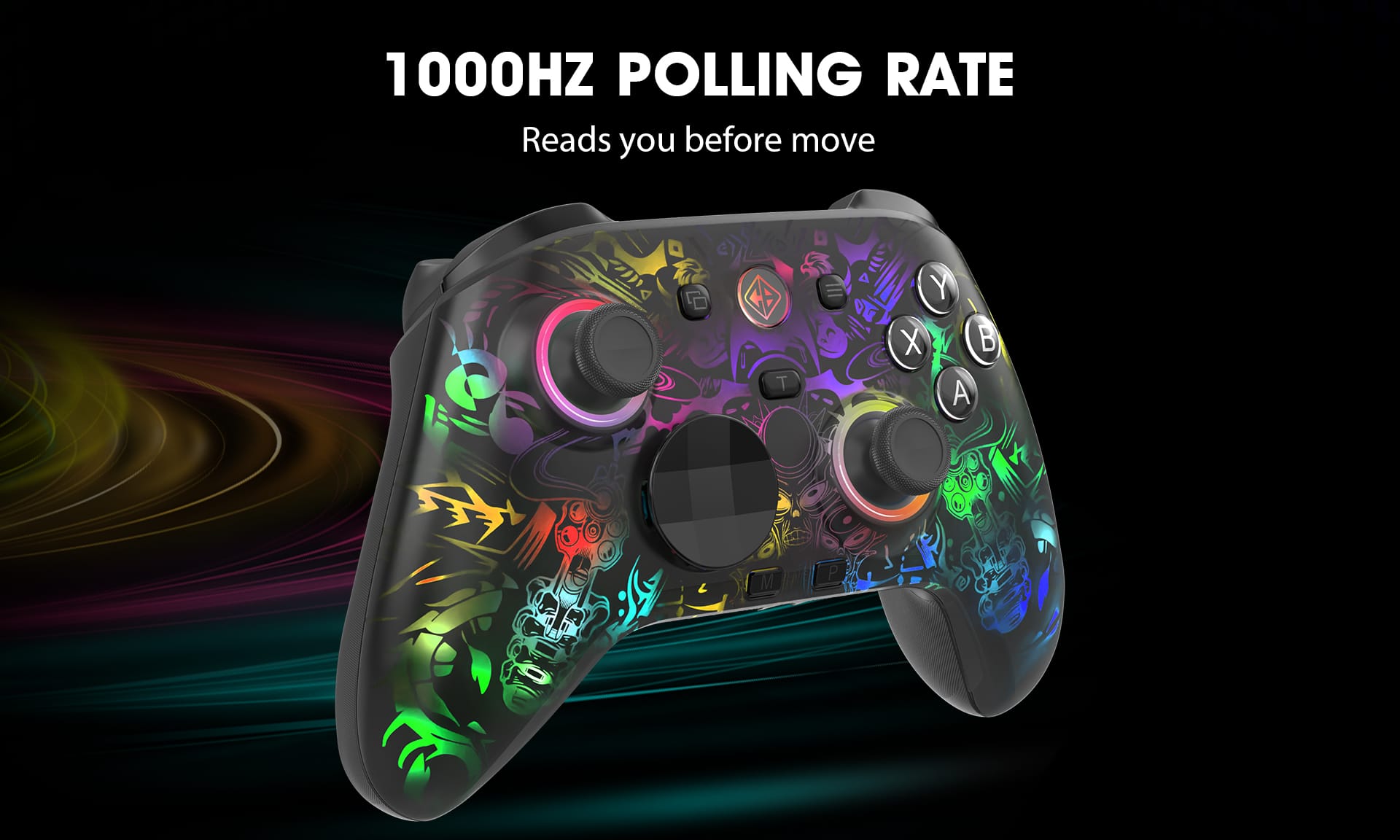
Wired (USB-C) is strongly recommended for cloud gaming as it provides the lowest possible input latency (1ms polling rate) and the most stable connection. If you prefer wireless, use 2.4GHz mode which also runs at 1000Hz polling rate. Avoid Bluetooth for cloud gaming as it can introduce additional input delay, which compounds with the streaming latency already present in cloud gaming platforms.
The cloud gaming platform detects the controller but inputs feel delayed. Is this a controller issue?
▼
Most likely not. The Lumora operates at a 1000Hz polling rate in both Wired and 2.4GHz modes, meaning controller-side latency is minimal. Input delay on cloud gaming platforms is primarily caused by internet connection speed, server distance, and network stability rather than the controller. To rule out the controller, test it locally on a non-cloud game — if it feels responsive there, the latency is coming from the stream. For the best cloud gaming experience, use a wired internet connection alongside the controller's wired or 2.4GHz mode.
Can I use the Lumora for cloud gaming on my phone or tablet?
▼
You can connect the Lumora to your Android phone or tablet via Bluetooth to access cloud gaming apps like GeForce Now, Xbox Game Pass, or OnePlay on mobile. However, keep in mind that Android support on the Lumora is limited and not covered under warranty. Controller compatibility will also depend on whether the specific cloud gaming app supports external Bluetooth controllers on your device. For the most stable experience, a PC with Wired or 2.4GHz connection is always preferred.