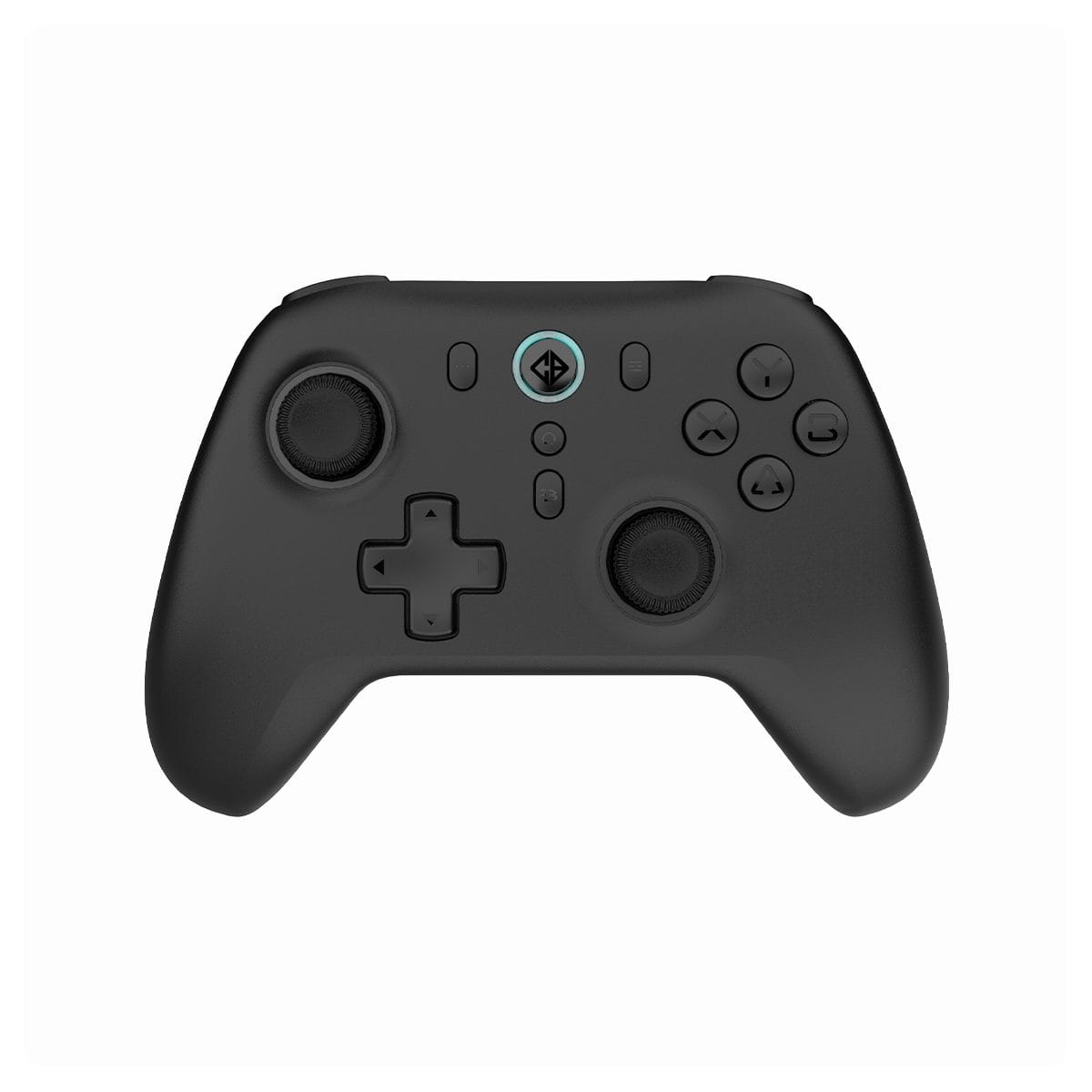
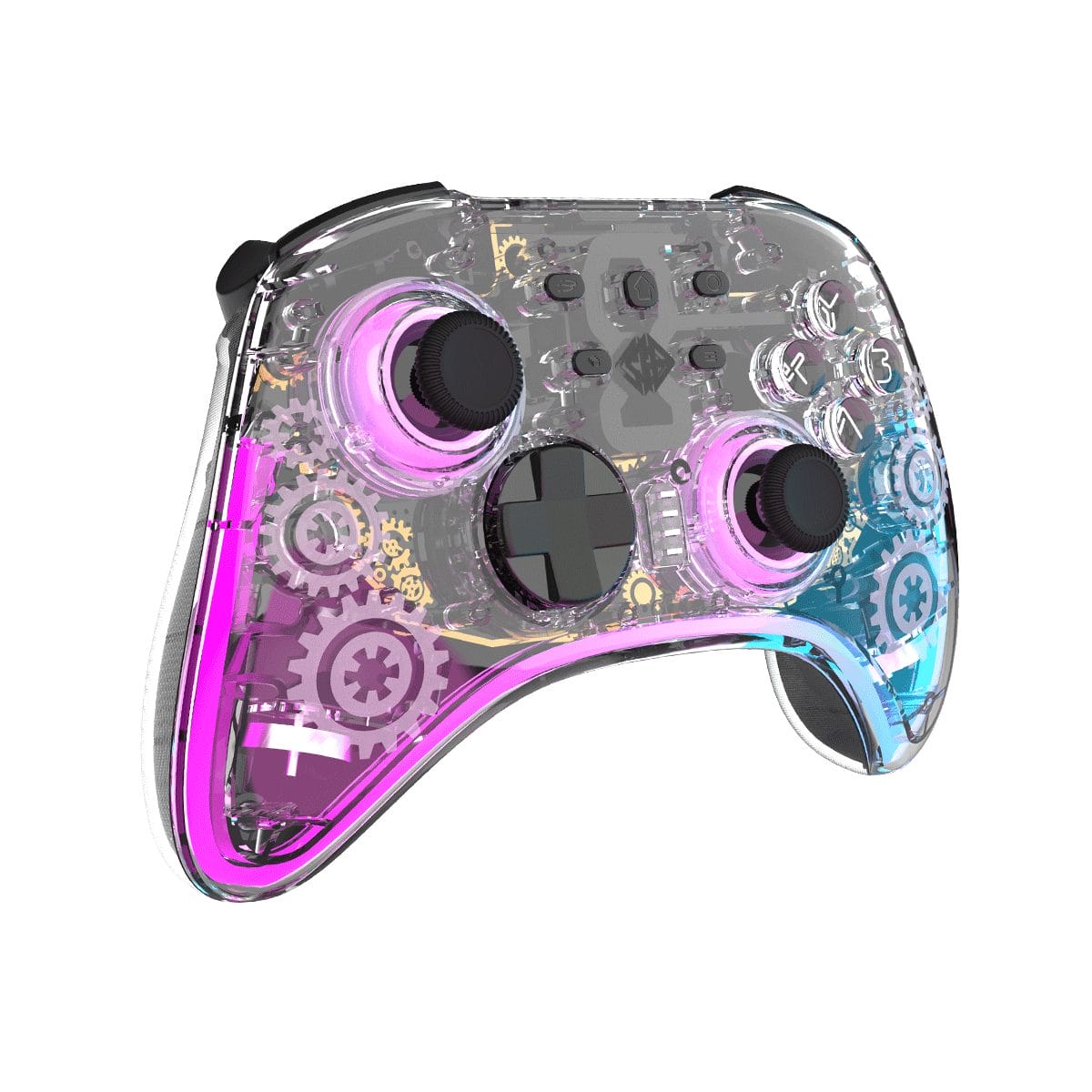
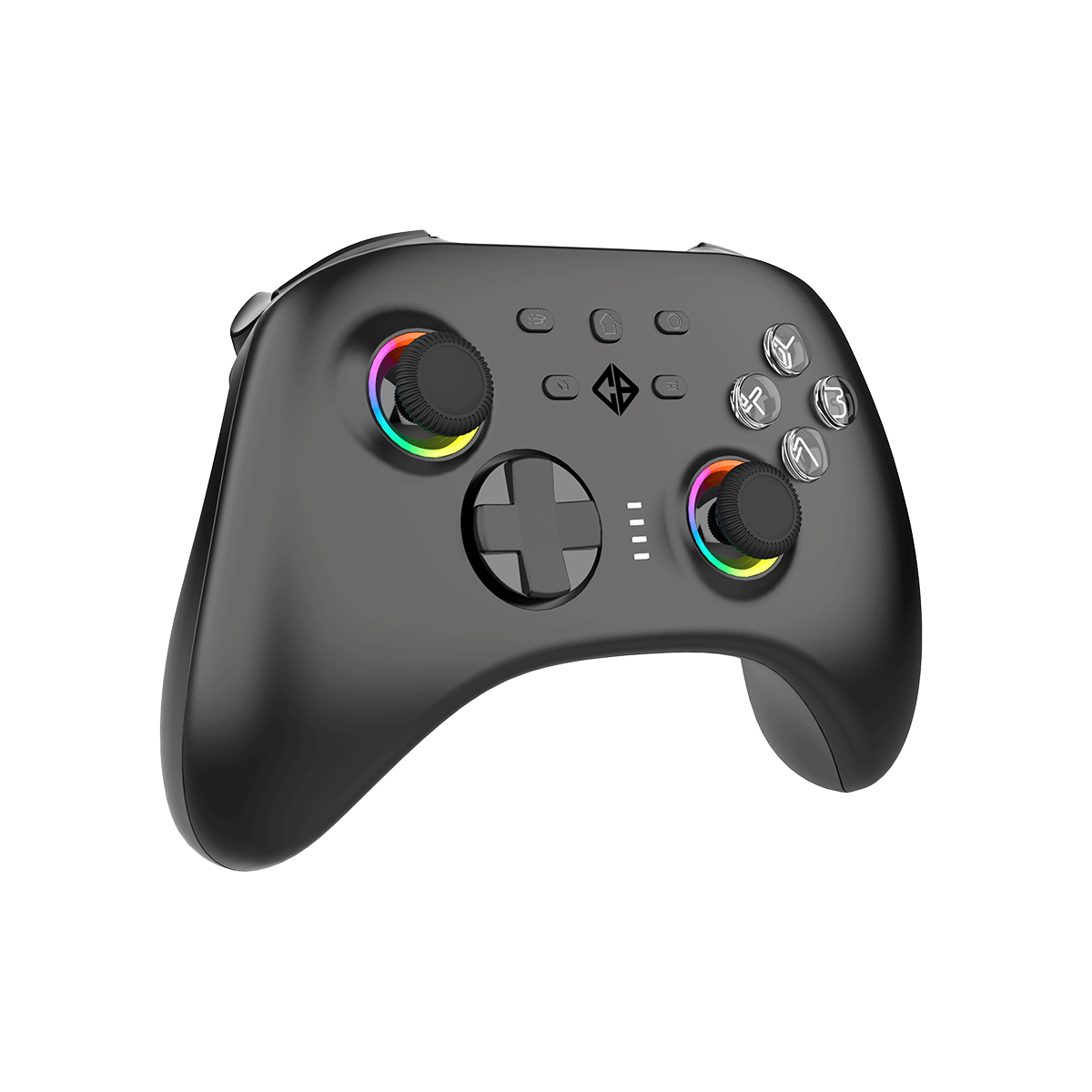
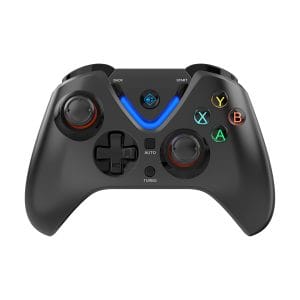
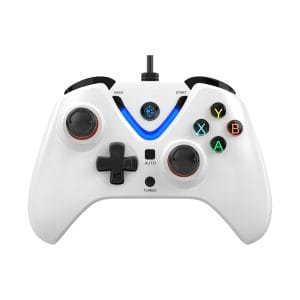
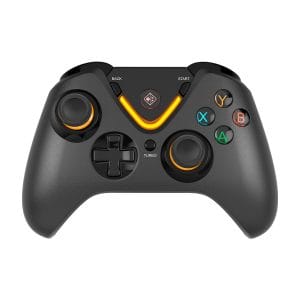
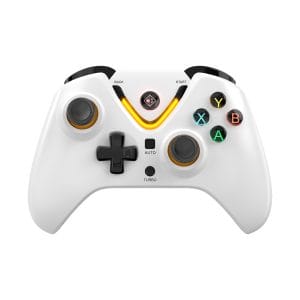
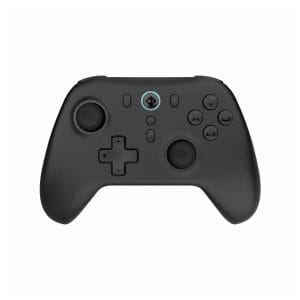
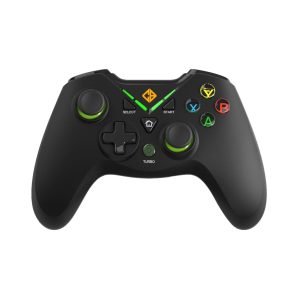
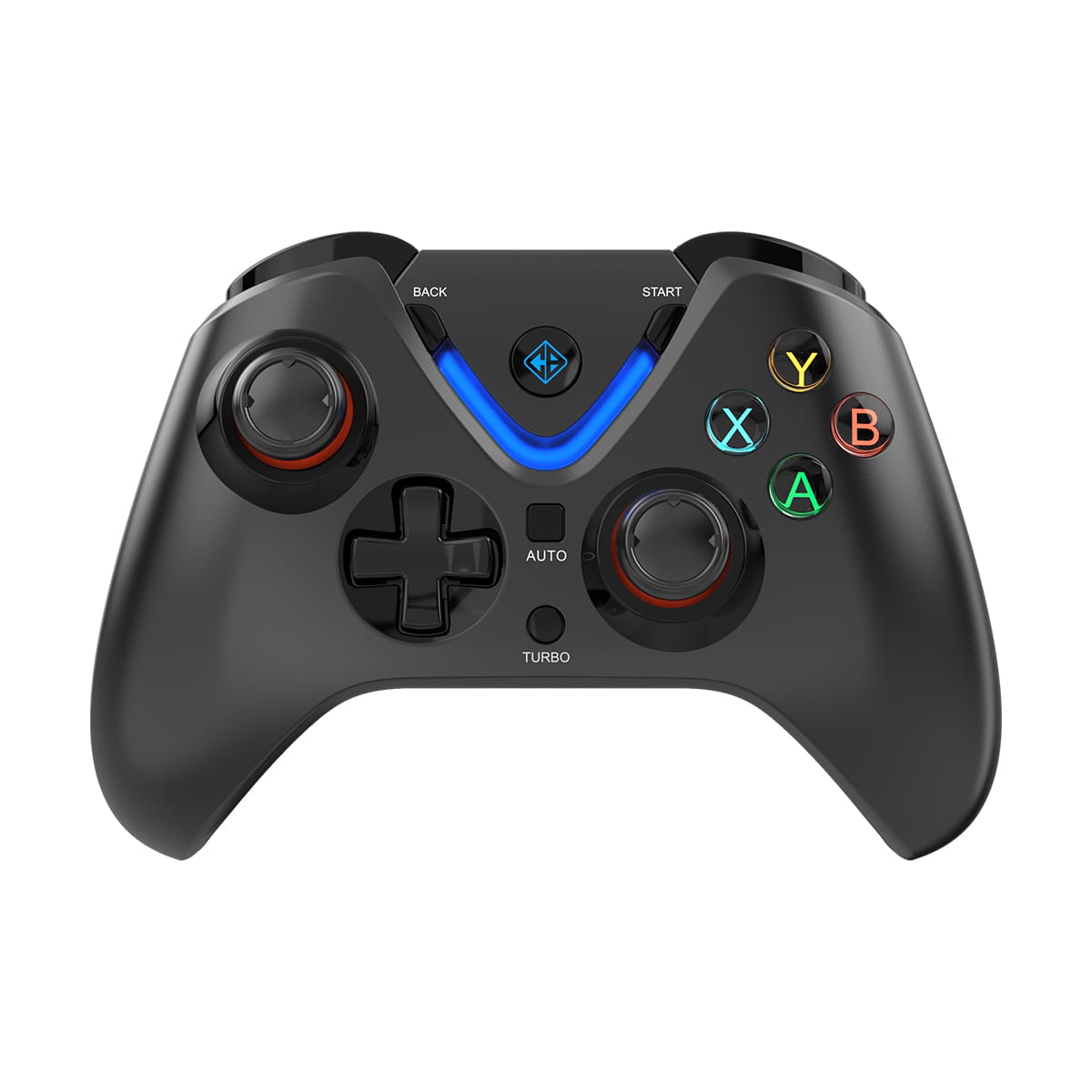
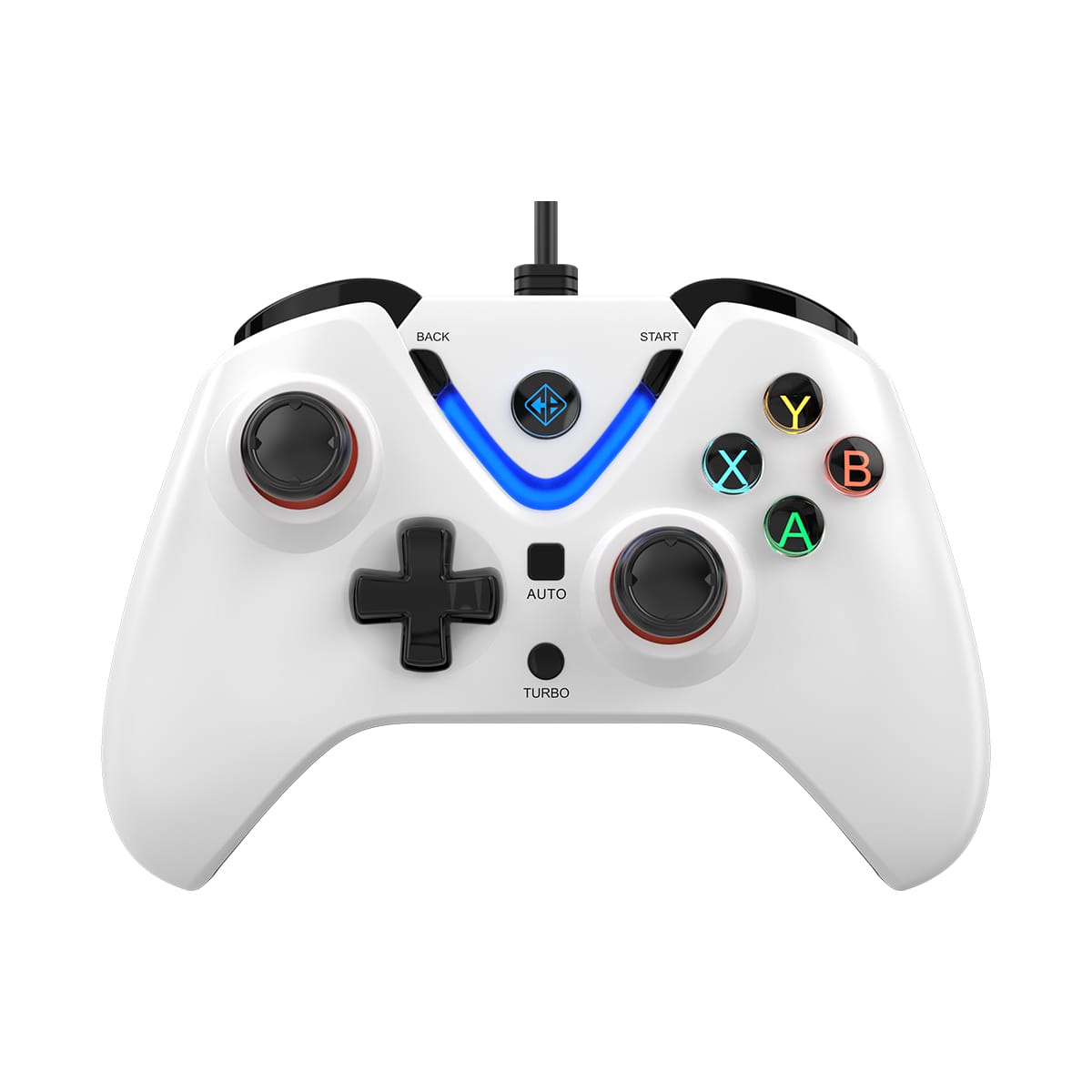
How do I turn on the Ares Tri-Mode controller?
▼
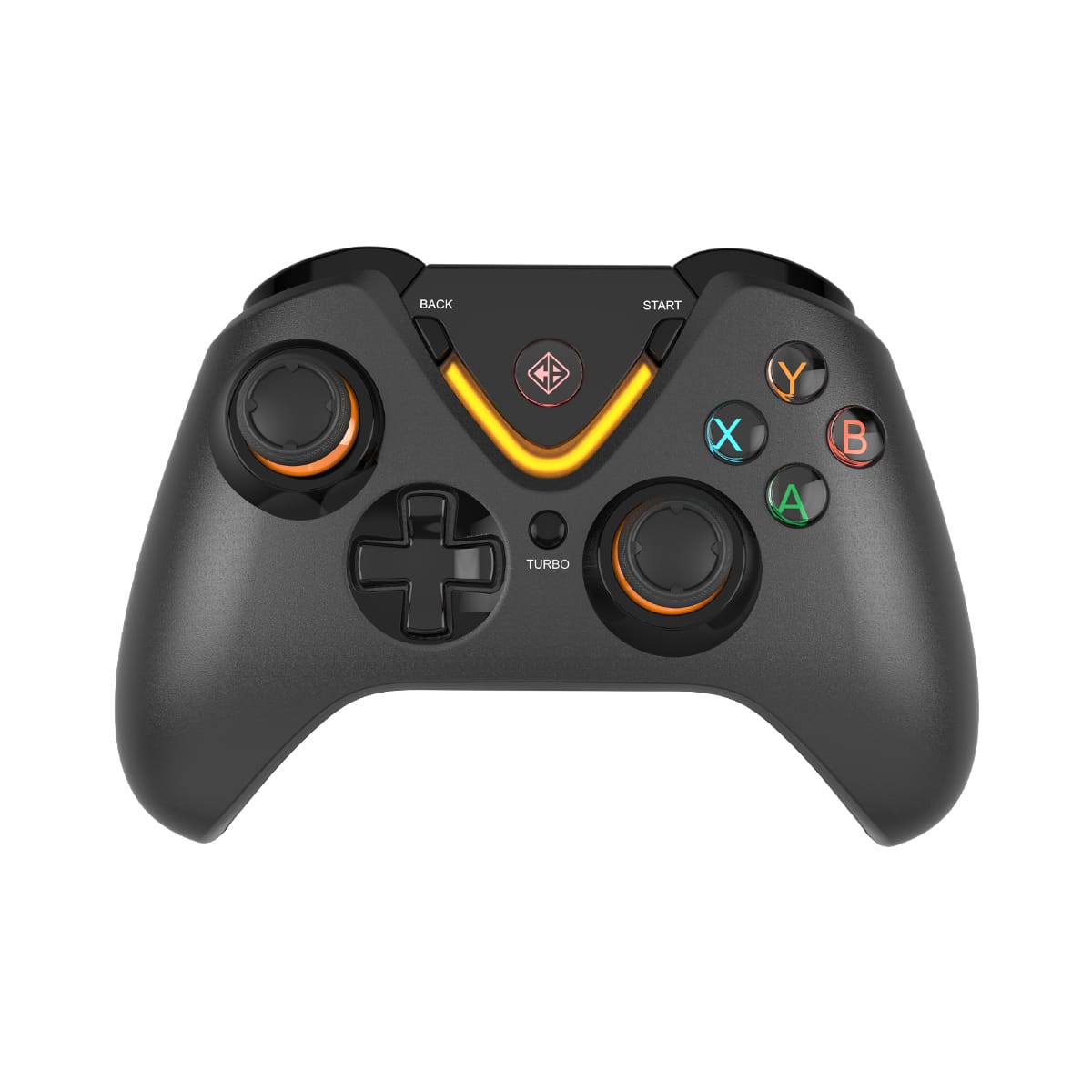
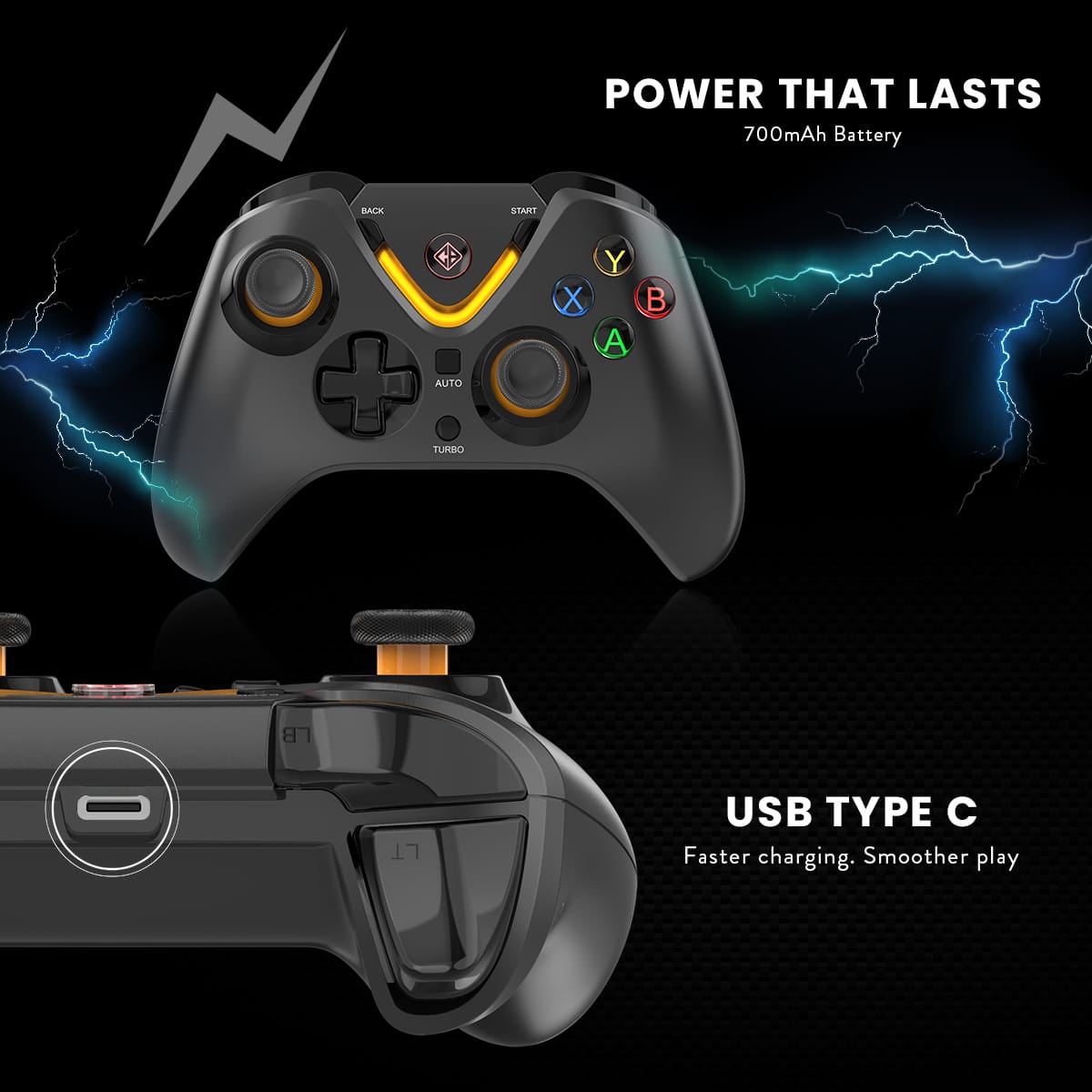
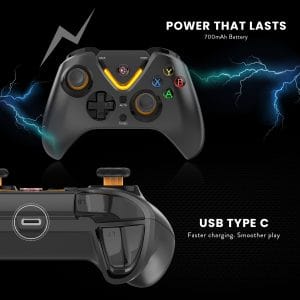
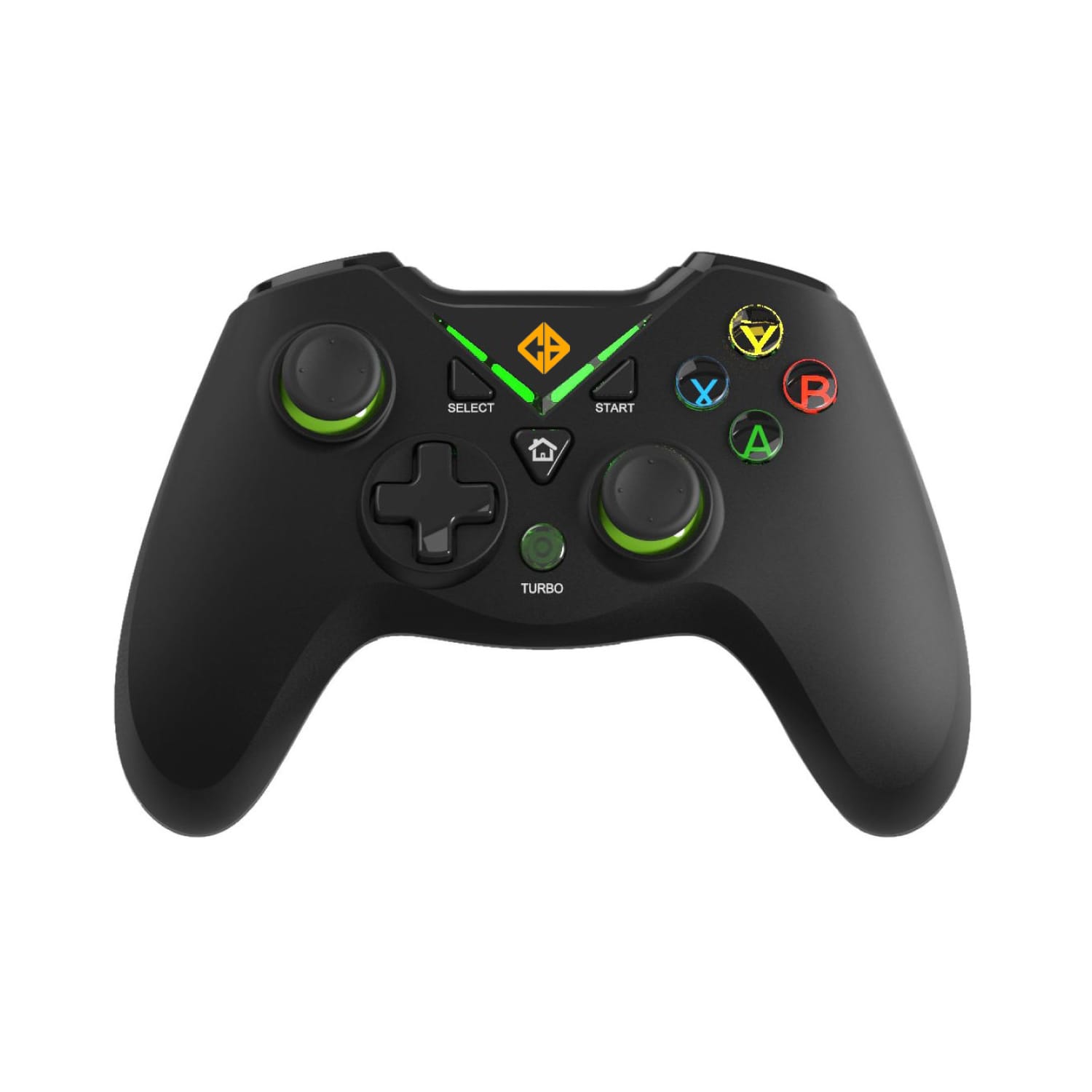
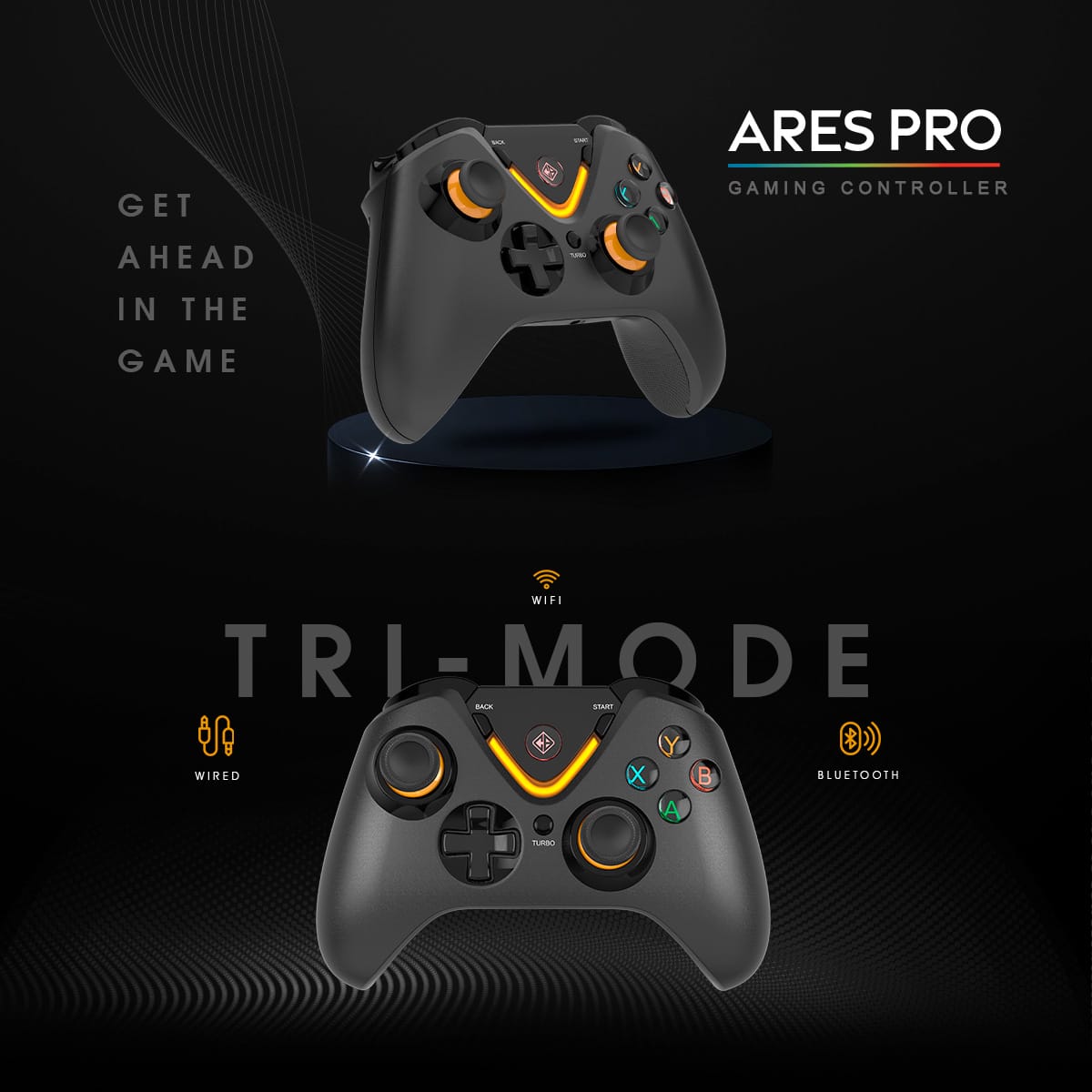
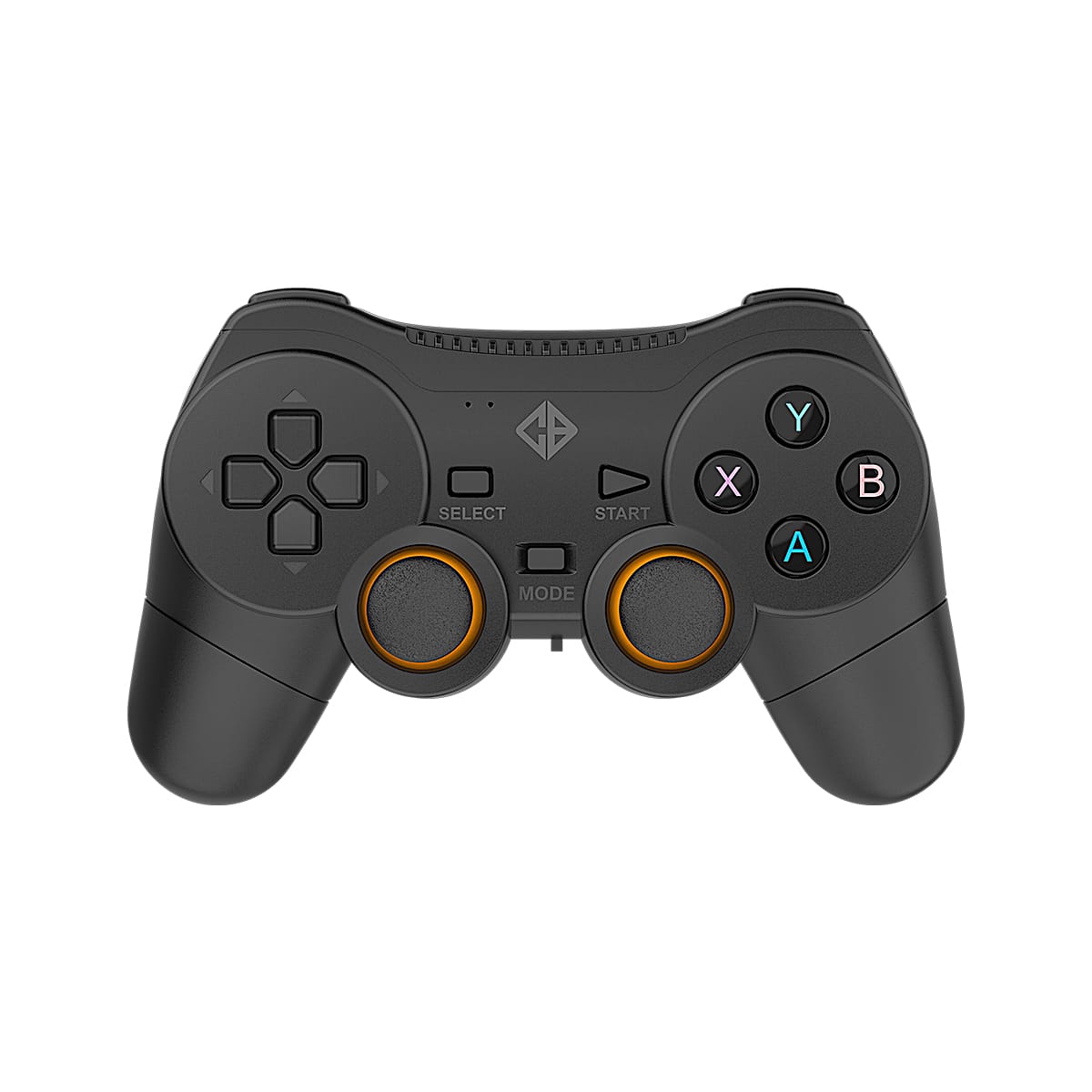
Press and hold the Home button for 3 seconds. The controller will vibrate once and the LED will blink, then stay solid when connected. If it does not turn on, ensure the battery is charged via the USB Type-C port.
How do I know which mode the controller is in?
▼
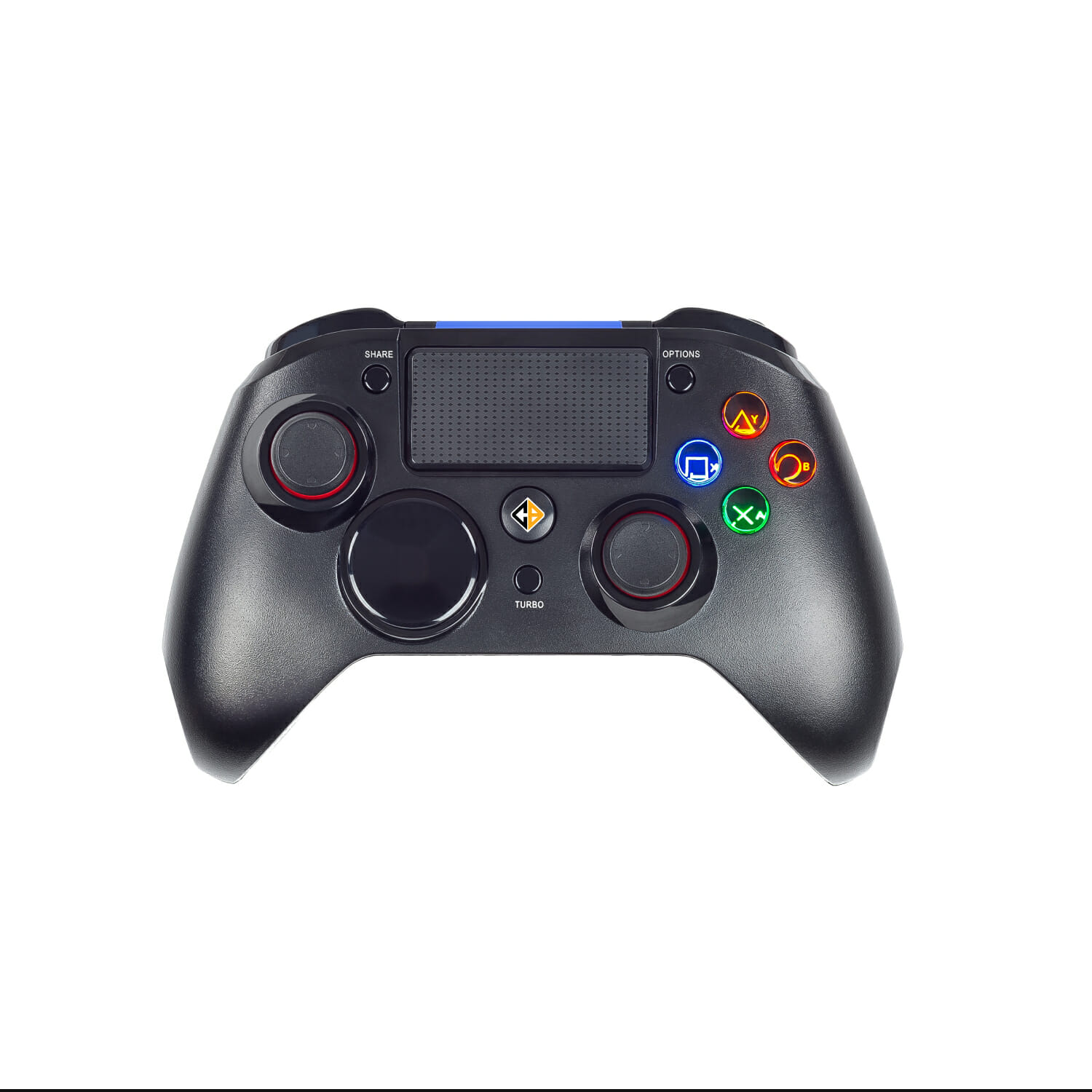
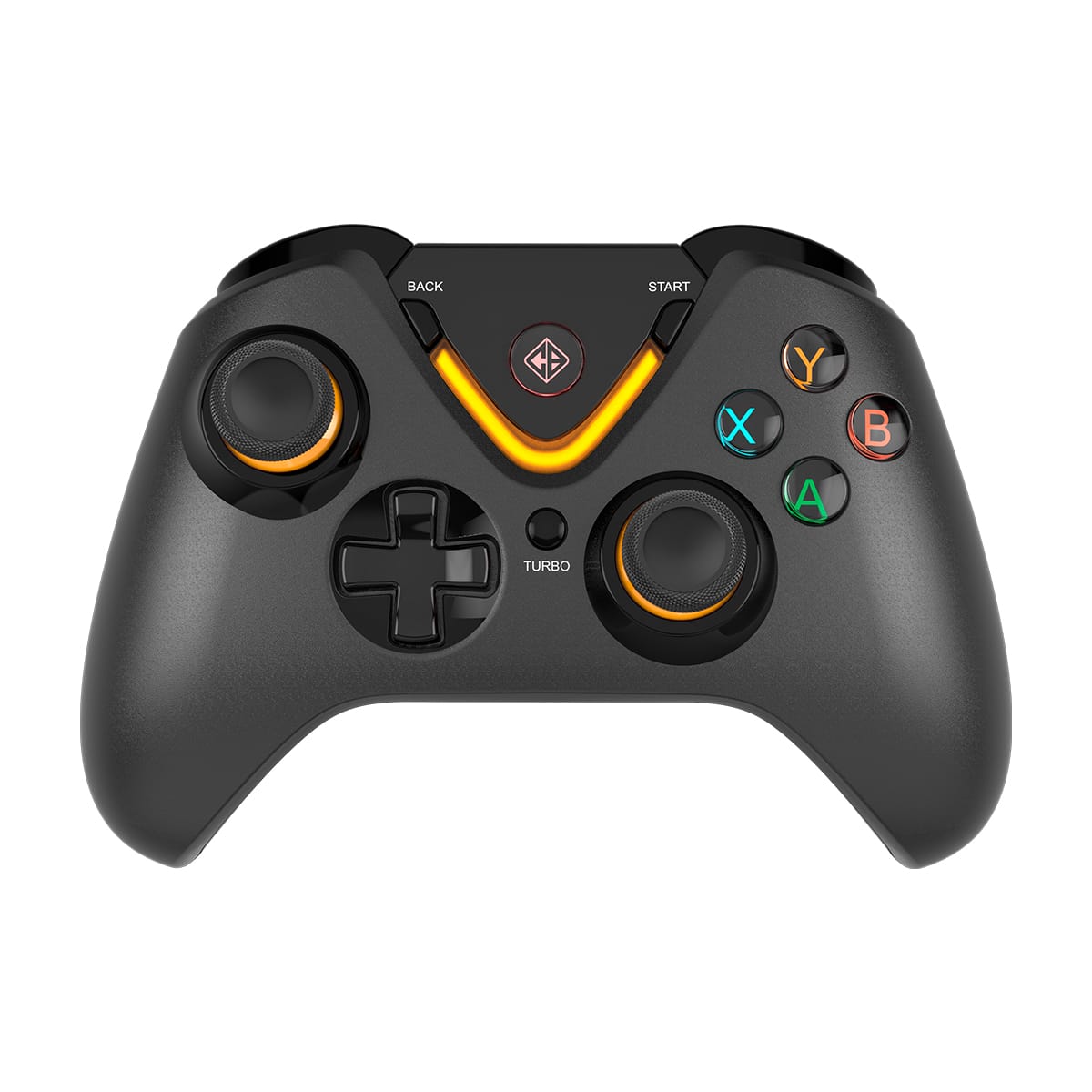
The LED colour tells you the active mode: Orange = XInput (PC), Red = DirectInput (PC), Green = Android, Blue = iOS.
How do I connect the Ares to my PC?
▼
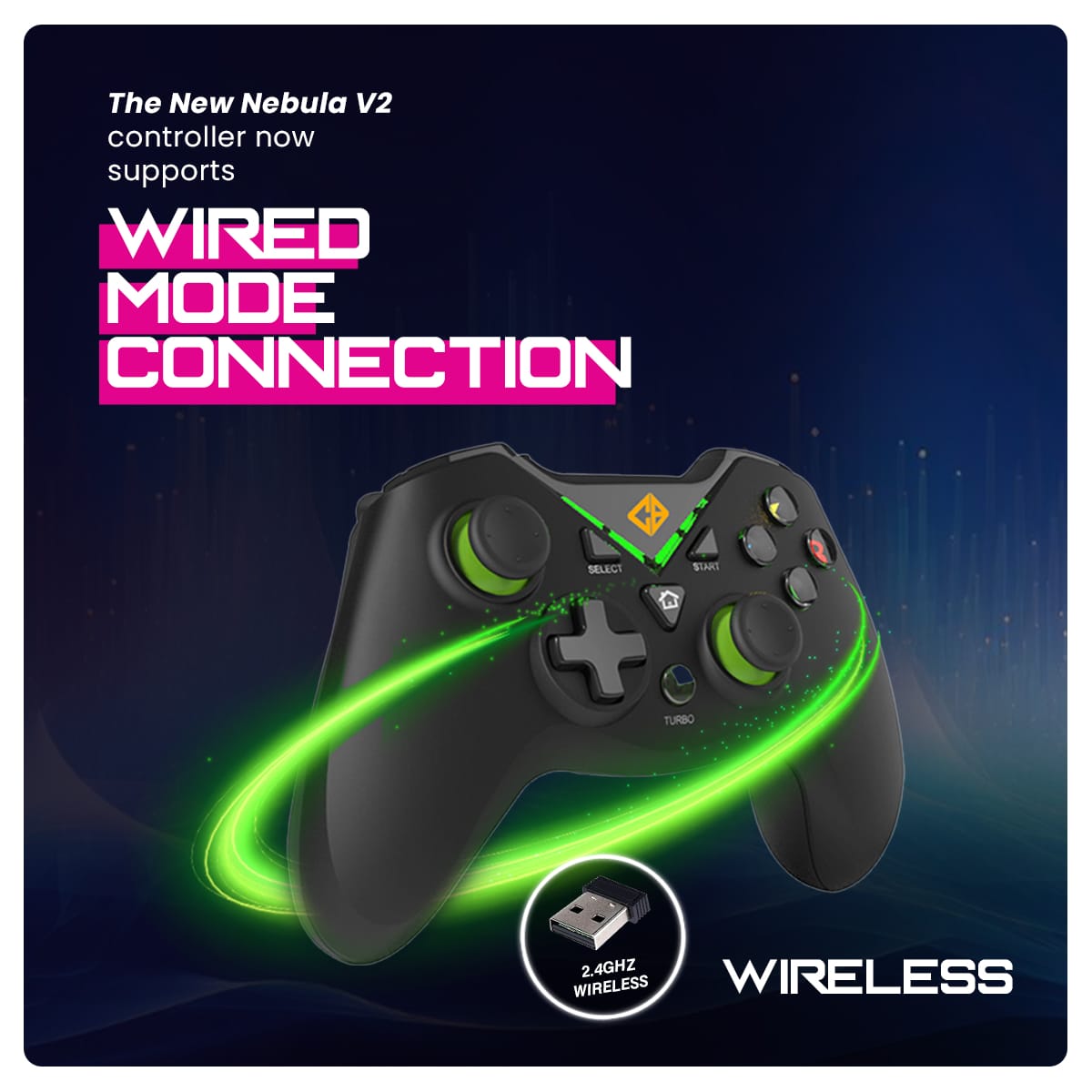
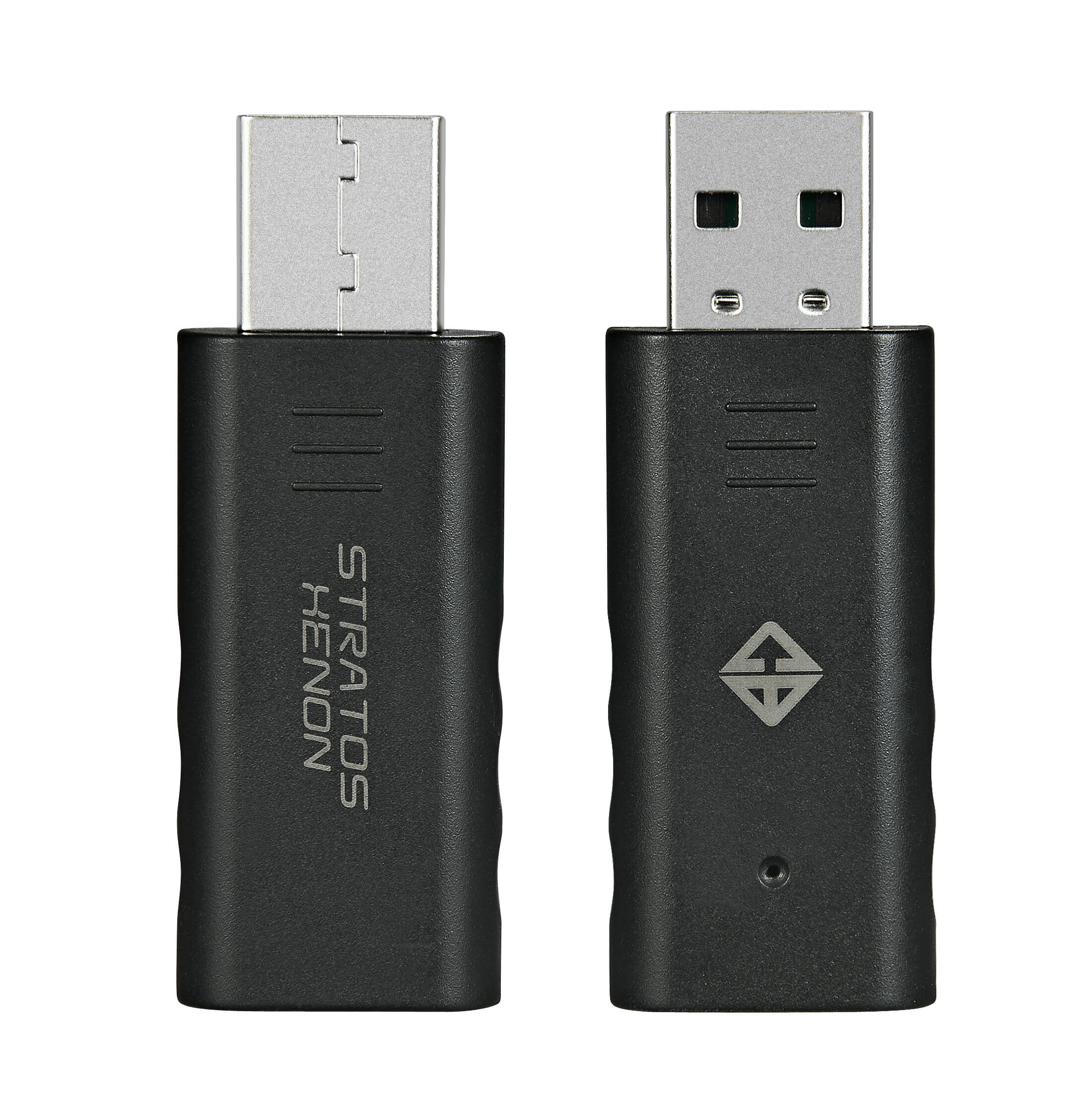
The recommended method for PC is 2.4GHz Wireless — plug the USB dongle into your PC, then press and hold Home for 3 seconds to power on. The LED will blink and then stay solid when connected. You can also connect via USB Type-C cable — Windows will detect and install drivers automatically.
How do I connect via Bluetooth to PC, Android, or iOS?
▼
The pairing combination depends on the device:
- PC (XInput): Hold X + Home for 3 seconds. Orange LED indicates pairing.
- Android: Hold A + Home for 3 seconds. Green LED indicates pairing.
- iOS: Hold B + Home for 3 seconds. Blue LED indicates pairing.
Note that Android requires OTG support for wired or dongle mode, and iOS support is limited to MFI-enabled games only.
How do I switch between XInput and DirectInput on PC?
▼
Press Back + Start together for 3 seconds to toggle between XInput (Orange LED) and DirectInput (Red LED). This switching is available in dongle or wired mode on PC only.
The controller is connected but not responding on PC. What should I do?
▼
Try toggling between XInput and DirectInput by pressing Back + Start for 3 seconds. Most modern PC games require XInput (Orange LED). Also ensure Windows has completed driver installation — disconnect and reconnect the USB cable if needed.
How do I swap the D-Pad and Left Joystick?
▼
Press L3 + Back to toggle the Left Joystick and D-Pad functionality between each other.
How do I switch between 4-Way and 8-Way D-Pad mode?
▼
Press and hold the Up D-pad button, then press the Back button to toggle between 4-Way and 8-Way D-Pad input modes.
How do I set up Turbo on a button?
▼
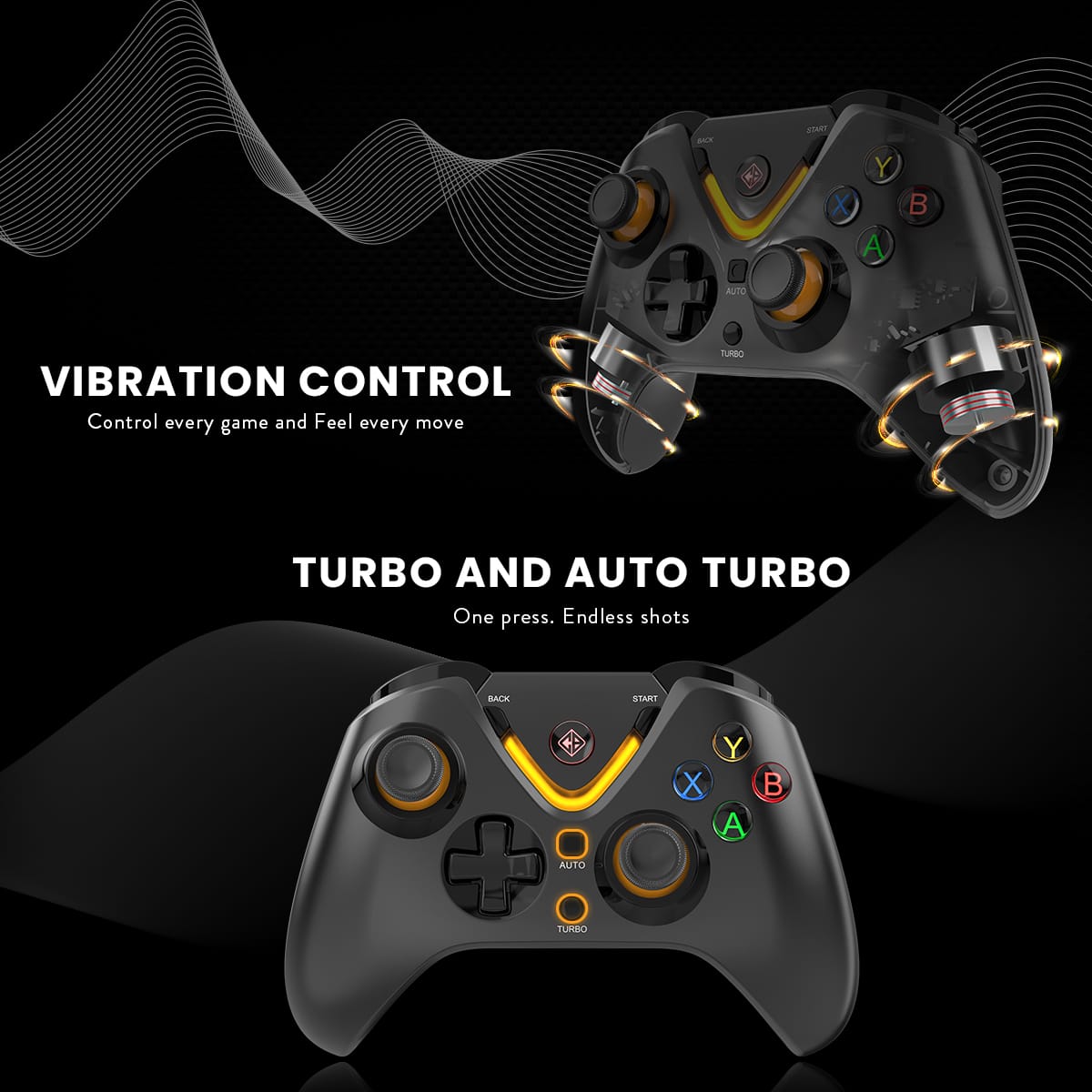
Hold the desired button (A/B/X/Y/L1/L2/R1/R2), then press the Turbo button to assign Turbo. To cancel, repeat the same combination. For Auto Turbo (continuous input without holding), hold the desired button and press the Auto button instead. Repeat to cancel.
How do I adjust Turbo speed?
▼
Press Turbo + Right Joystick Up to increase speed, and Turbo + Right Joystick Down to decrease speed.
How do I adjust vibration strength?
▼
Press R3 + Left Joystick Up to increase vibration, and R3 + Left Joystick Down to decrease it.
The vibration is not working. What should I check?
▼
First, ensure vibration is enabled — press A + Back to toggle it on. Also check if the battery is critically low, as vibration automatically disables at low battery to conserve power. Note that vibration is not supported on Android or iOS, and the game itself must also support vibration for it to function.
How do I turn the ABXY LED lighting on or off?
▼
Press X + Back to toggle the ABXY LED lighting on or off.
How do I check battery status?
▼
The LED indicates battery status — it flashes slowly when the battery is low, blinks slowly while charging, and turns off when fully charged.
How do I power off the controller?
▼
Press and hold B + Back for 3 seconds to power off the controller.
The controller keeps disconnecting. What should I do?
▼
Ensure the 2.4GHz dongle has a clear line of sight to the controller with no obstructions. Recharge the battery and keep the controller away from other wireless devices that may cause interference. The recommended operating distance is 8–10 metres.
Some buttons are not responding. What should I try?
▼
Use the Reset pin-hole on the back of the controller to reset it, then reconnect. Ensure the controller is in the correct mode for your platform.
The controller is not pairing with my Android device.
▼
Ensure you are using the correct pairing method — hold A + Home for 3 seconds (Green LED confirms Android mode). If using wired or dongle mode on Android, your device must support OTG. Note that Android compatibility is limited and not covered under warranty.
The controller is not pairing with my iOS device.
▼
Hold B + Home for 3 seconds (Blue LED confirms iOS mode). iOS support is limited to MFI-certified games only — the controller will not work in games that do not support MFI controllers.
Can I use the Ares Tri-Mode on a PlayStation, Xbox, or Nintendo Switch?
▼
No. The Ares Tri-Mode is designed exclusively for Windows PC use and is not compatible with any gaming console. No warranty or support is provided for console usage.
Is the Ares Tri-Mode I purchased the new 1000Hz polling rate version?
▼
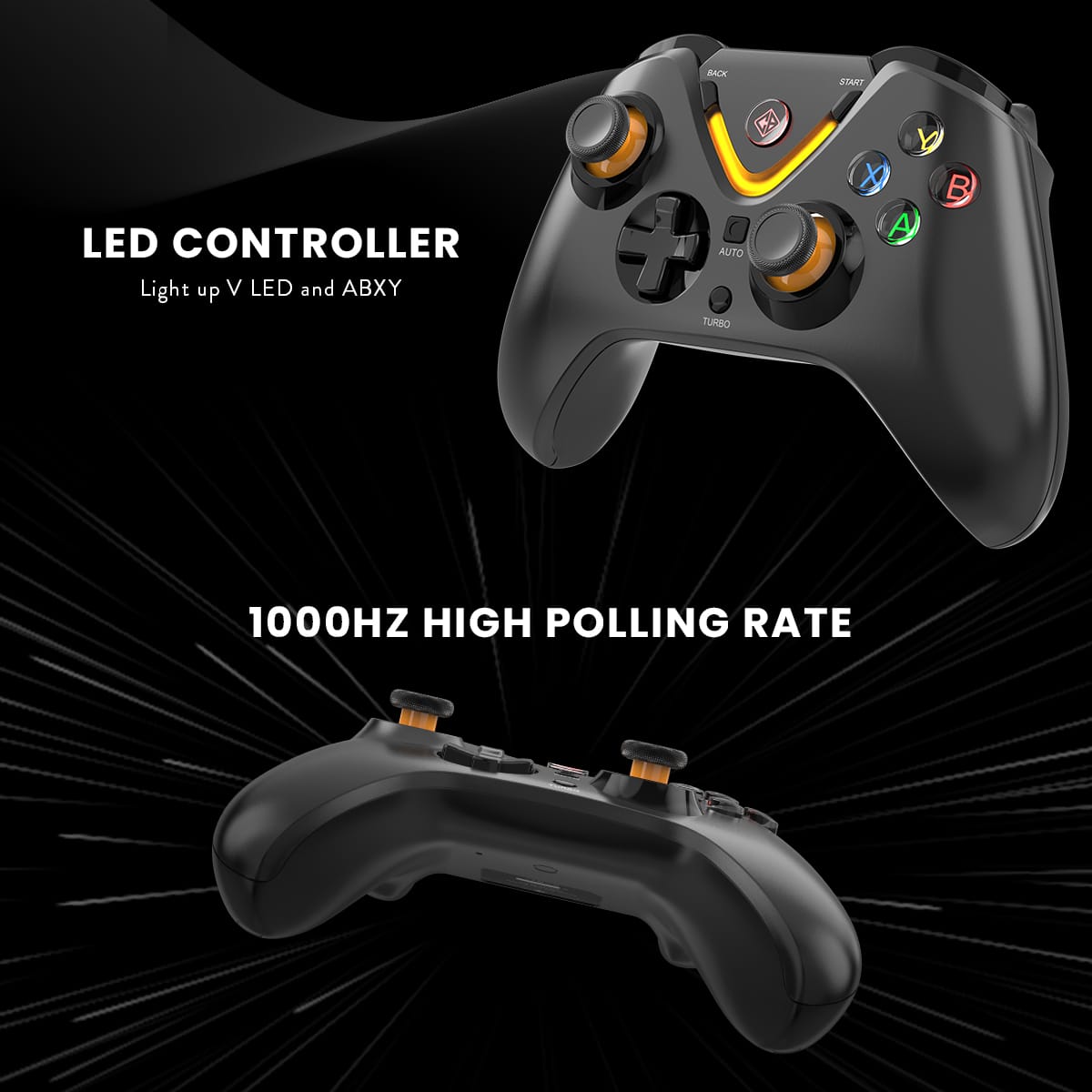
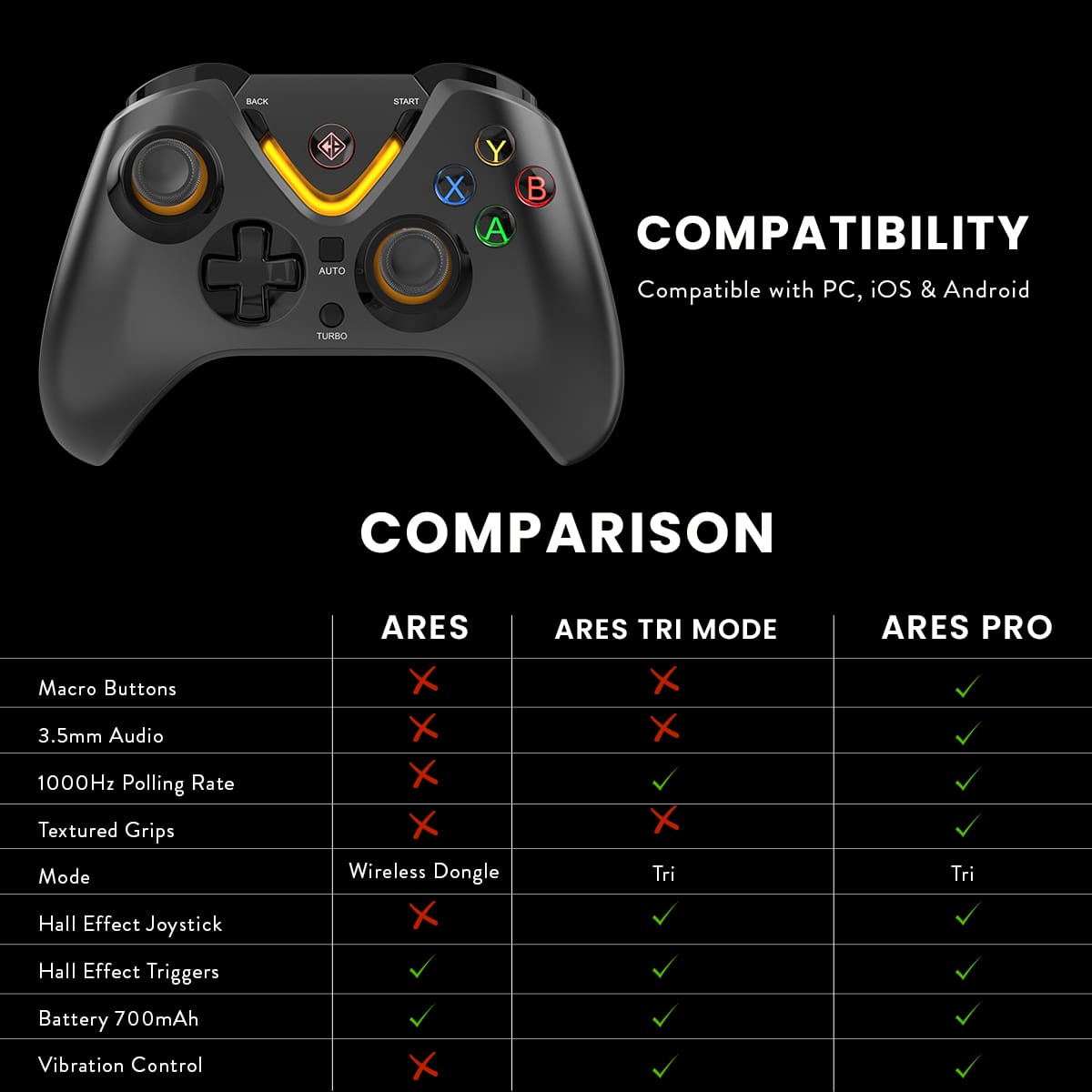
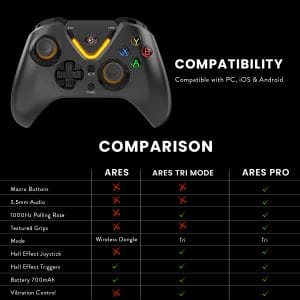
The new Ares Tri-Mode (2026 batch) operates at 1000Hz polling rate via both Wired and 2.4GHz wireless modes, delivering significantly lower input latency than the previous version. Important: Previous batches of the Ares Tri-Mode ran at 125Hz polling rate and cannot be upgraded to 1000Hz — this is a hardware difference, not a firmware update. If you are unsure which batch you have, contact Cosmic Byte support.
Is the Ares Tri-Mode compatible with GeForce NOW, Xbox Cloud Gaming, and OnePlay?
▼
Yes. The Ares Tri-Mode works with GeForce NOW, Xbox Cloud Gaming, and OnePlay on PC. Use XInput mode via Wired (USB-C) or 2.4GHz Wireless for the best and most reliable experience across all three platforms. The Orange LED confirms XInput mode is active.
Which connection mode should I use for cloud gaming?
▼
Always prefer Wired (USB-C) or 2.4GHz Wireless for cloud gaming on PC. The new 2026 Ares Tri-Mode supports 1000Hz polling rate in both these modes, giving you the lowest possible input latency — which is especially critical in cloud gaming where your inputs already travel to a remote server and back. Bluetooth has higher latency and is not recommended for cloud gaming sessions.
Important: If you own a previous batch Ares Tri-Mode running at 125Hz, this cannot be upgraded to 1000Hz. For competitive cloud gaming, the 2026 1000Hz batch is strongly recommended.
Which input mode should I use for cloud gaming — XInput or DirectInput?
▼
Always use XInput mode (Orange LED) for all three cloud gaming platforms. XInput is the standard recognised by Windows, browsers, and all major cloud gaming services. To activate XInput:
- Wired or 2.4GHz on PC: Press and hold Home for 3 seconds to power on — XInput is the default mode (Orange LED).
- If switched to DirectInput (Red LED), press Back + Start for 3 seconds to toggle back to XInput (Orange LED).
How do I connect the Ares Tri-Mode for cloud gaming on PC via browser?
▼
Connect the controller in Wired (USB-C) or 2.4GHz Wireless mode and confirm Orange LED (XInput) is active. Open your cloud gaming platform in Microsoft Edge or Google Chrome — the controller should be detected automatically. If not detected, refresh the browser after the controller is connected and confirm XInput mode is active.
Can I use the Ares Tri-Mode for cloud gaming on Android or iOS?
▼
The Ares connects to Android via Bluetooth (Green LED — hold A + Home for 3 seconds) and to iOS via Bluetooth (Blue LED — hold B + Home for 3 seconds). However, note the following limitations for mobile cloud gaming:
- Android OTG support is required for wired or dongle mode on Android.
- iOS support is limited to MFI-certified games only — cloud gaming app compatibility may vary.
- Vibration does not work on Android or iOS regardless of platform.
- Android and iOS compatibility is not covered under warranty.
Will Turbo and Auto Turbo work during cloud gaming sessions?
▼
Yes. Turbo and Auto Turbo are processed by the controller hardware itself and will function on any platform regardless of the cloud gaming service. These features work independently of what the game or streaming platform supports.
Inputs feel laggy during cloud gaming. Is this a controller issue?
▼
In most cases, lag during cloud gaming is a network or connection issue rather than a controller defect. Try these steps:
- Switch to Wired (USB-C) or 2.4GHz — avoid Bluetooth.
- Connect your PC to 5GHz Wi-Fi or Ethernet.
- Close background apps consuming bandwidth.
- Confirm XInput mode is active (Orange LED).
- If you own a previous batch 125Hz Ares, note that the lower polling rate can contribute to slightly higher input latency compared to the 2026 1000Hz model — this is a hardware limitation and cannot be resolved by any settings change.